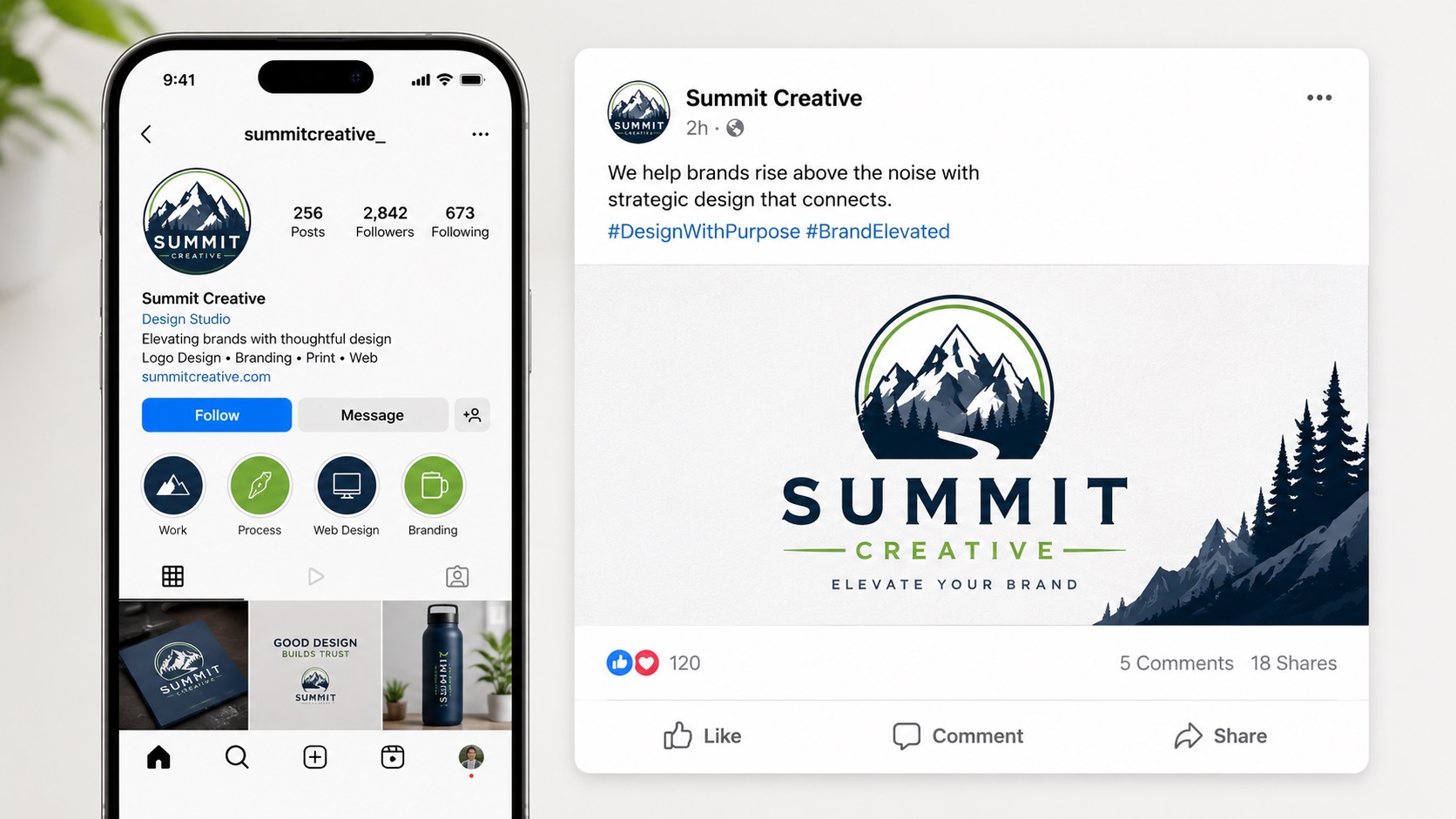
You finally have a proper vector logo. Clean paths, correct colors, every format you need. Then you go to upload it to Instagram, Facebook, or LinkedIn and something looks off. The logo appears soft, the colors seem slightly different, or it gets compressed and artifacts appear around the edges.
Vector files are not always the direct answer for social media, and understanding why helps you get the best results on every platform.
Why You Cannot Upload SVG Directly to Most Social Platforms
Social media platforms do not support SVG files for profile pictures or posts. Facebook, Instagram, LinkedIn, Twitter, Pinterest, and TikTok all require raster image formats, typically JPG or PNG. They simply do not know what to do with an SVG.
This does not mean your vector logo is useless for social media. It means you need to export from the vector source at the right size and settings before uploading. Done correctly, this produces noticeably sharper results than working from a small raster PNG.
The Right Way to Export From a Vector for Social Media
The goal is to export a PNG from your vector file at exactly the right size for each platform, with the correct settings to prevent quality loss.
Export at the Correct Pixel Size
Every social platform has recommended image dimensions. Using the correct size means you are not relying on the platform to resize your image, which almost always reduces quality.
Some common sizes as a starting point, though platform specifications do change over time and it is worth checking current documentation:
- Profile pictures are typically displayed at around 150 to 200 pixels but should be uploaded at a larger size, usually 400 to 800 pixels square, so the platform has room to resize cleanly
- Cover photos vary widely by platform and are often much larger, ranging from around 820 by 312 pixels for Facebook covers to larger dimensions for LinkedIn and YouTube
- Post images vary by aspect ratio and platform, with square posts at around 1080 by 1080 pixels being a common standard
Use PNG Over JPG for Logos
For logo images specifically, always export as PNG rather than JPG. JPG uses lossy compression, which creates visible artifacts around sharp edges and text, exactly the areas where a logo has the most detail. PNG is lossless and preserves the clean edges that a vector export produces.
The exception is if a platform forces JPG compression regardless, in which case exporting at a larger size than needed helps preserve quality after the platform's own compression.
Export With a Transparent Background for Profile Images
When your logo will sit on a colored or patterned background, exporting with a transparent background ensures it sits cleanly on whatever surface is behind it. PNG supports transparency, JPG does not.
For platforms that display profile pictures as circles or with colored backgrounds, a PNG with a transparent background lets the platform's background show through correctly rather than showing a white or colored box around your logo.
Why Logos Can Look Soft on Social Media Even When Exported Correctly
Social platforms compress uploaded images. Even a perfectly exported PNG gets re-compressed when you upload it. This compression is more aggressive on some platforms than others, and it tends to affect images with fine detail and sharp edges most noticeably.
A few things help minimize this:
Upload at a slightly larger size than displayed. Most platforms display images smaller than the maximum upload size. An image uploaded at twice the display size looks sharper after the platform's compression than one uploaded at exactly the display size.
Use sRGB color profile when exporting. Social platforms display images in sRGB. If your vector file uses a different color profile, colors can look slightly different after upload. Exporting in sRGB keeps colors consistent.
Avoid heavy filters or gradients in logo social media images. These compress worse than flat colors. For a logo with flat colors, the compression artifacts are minimal. For a logo with complex gradients or subtle shading, the compression is more visible.
Building Branded Social Media Templates From a Vector
Beyond profile pictures, your vector logo can be incorporated into post templates, story graphics, and cover images. Here is where having the vector source file is particularly useful.
In Illustrator or a tool like Canva Pro (which allows SVG uploads), you can place your vector logo into social media templates at any size and position without quality loss. The logo stays sharp regardless of how large or small it appears in the layout.
For teams using tools like Canva for everyday social media creation, having the SVG version of your logo available for upload means the logo quality in every post starts from the best possible source, rather than a degraded copy of a copy.
Setting Up Different Versions for Different Purposes
A logo used on social media often needs slight adjustments compared to the print or primary version.
Square crop consideration. Profile pictures are cropped to a square or circle. If your logo is horizontal or has a wide aspect ratio, the full logo may not fit well as a profile picture. A simplified version using just the icon element, without the business name text, often works better at small profile picture sizes.
Dark background version. Some platforms display profile pictures against dark or colored backgrounds. If your logo is dark or has dark text, a white version of the logo may show up more clearly.
Minimum readable size. On mobile screens, profile pictures display very small. Any fine detail or small text in your logo may not be readable at those sizes. Checking how your logo looks at 50 by 50 pixels on a phone screen is worth doing before committing to a profile picture.
Frequently Asked Questions
Can I upload an SVG to social media?
Most platforms do not support SVG for profile pictures or posts. Export a PNG from your SVG at the correct size for each platform.
Why does my logo look slightly blurry on Instagram after uploading?
Instagram compresses uploaded images. Uploading at a larger size than the display size, exporting as PNG rather than JPG, and using the sRGB color profile all help minimize the effect of this compression.
Should I use the full logo or just the icon as my profile picture?
This depends on your logo design. If your logo is wide or has small text, a simplified icon version often works better at the small sizes profile pictures are displayed at. Ideally, have both versions available as separate exports.
My logo colors look different on Instagram compared to how they look in Illustrator. Why?
The most common cause is a color profile mismatch. Export your logo in the sRGB color profile, which is what social platforms use for display. If your file is in a wider gamut profile, the colors will shift when displayed on a platform that converts to sRGB.
Can I use my logo in Canva for social posts if I only have a PNG?
Yes, but the quality depends on the resolution of the PNG. A high-resolution PNG exported from a vector source will look much sharper in Canva posts than a small PNG that has been scaled up. If you have the SVG version, Canva Pro allows SVG uploads which gives you the best quality.
Need artwork converted?
VectorFixer can redraw logos, convert PNG files to SVG, and prepare clean production-ready vector files.
Contact Us