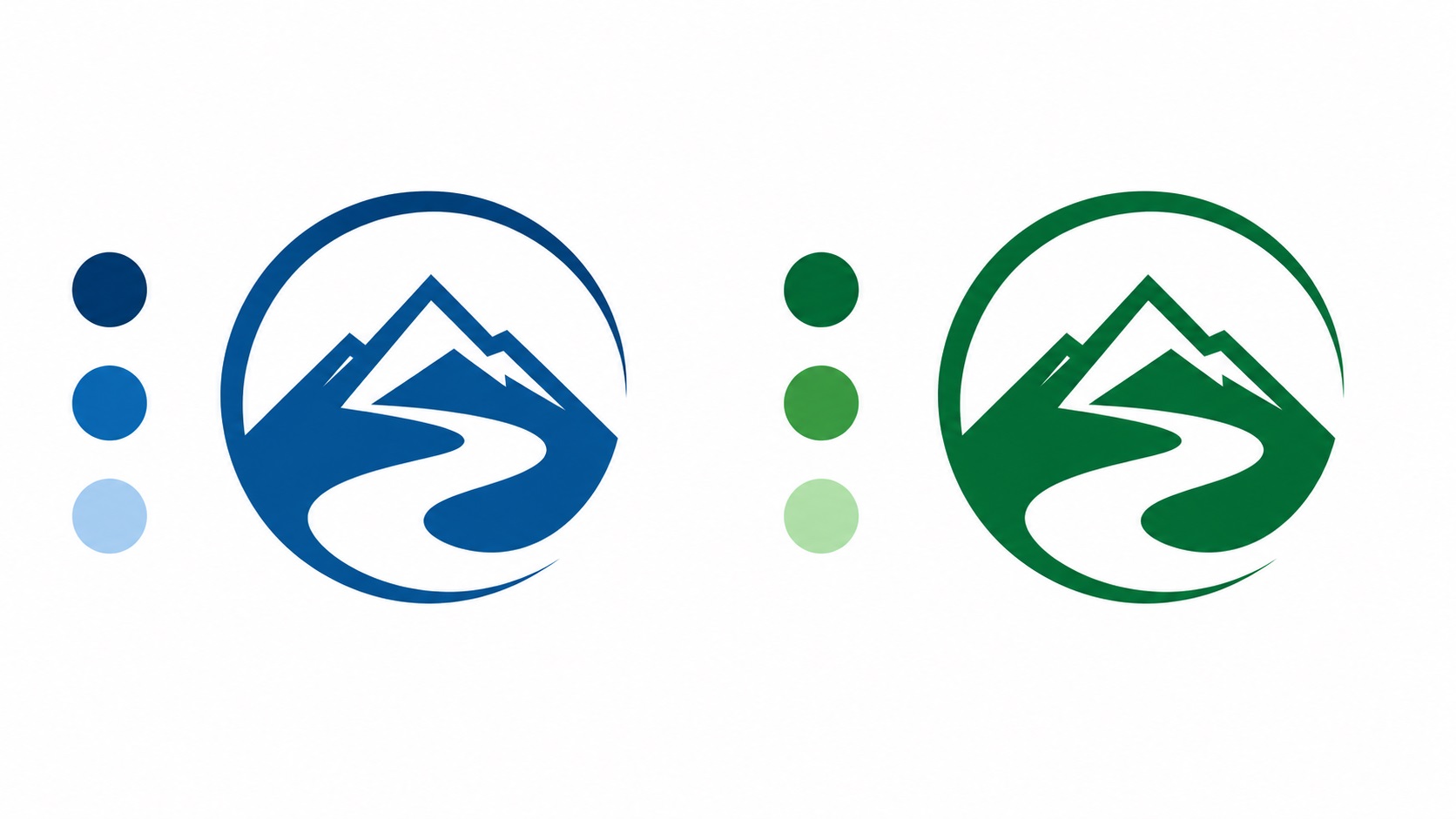
Brand color changes happen more often than people expect. A business rebrands after a few years. A new partner wants something fresher. Market research suggests the original palette is not connecting with customers. Or sometimes the original colors just look dated and it is time for an update.
Changing your brand colors sounds simple. Pick new colors, update the logo, move on. In practice, it creates a chain of tasks that touches every place your logo appears, and the process can get complicated if your logo files are not set up correctly.
Here is what actually happens when you change brand colors, and how to handle it cleanly.
Why a Color Change Is Not Just a Quick Edit
If your logo exists only as a PNG or JPG, changing the colors is genuinely difficult. Raster files store color as individual pixels, not as editable color fills. To change the blue in a PNG logo to green, you would need to manually select and replace those pixels, and the result is rarely clean, especially around soft edges and anti-aliased areas.
A vector file is different. Each color in a vector logo is a defined fill applied to a path. To change a color, you select the shape and update the fill value. If your blue circle needs to become green, you click the circle, change the fill to green, and it is done. Every element with that fill updates cleanly and the result is perfect.
This is one of the most practical reasons to have a vector source file for your logo. Color changes that take seconds in Illustrator can take hours of messy pixel editing in a raster program, often with imperfect results.
The Right Way to Handle a Brand Color Change
Start With Your Vector Source File
The starting point for any color change should be the AI or EPS source file for your logo. This is the editable vector version where colors are defined as fills on paths.
If you do not have this file, you will need to either get your logo vectorized first, or ask whoever designed it originally to make the change. Without the source file, you are working against the grain.
Make the Changes With Exact Color Values
When updating brand colors, do not eyeball it. Define your new colors precisely before making any changes.
For a complete color update, you want your new brand color defined as:
- Hex code (for websites and digital use)
- RGB values (for screens and digital applications)
- CMYK values (for print production)
- Pantone reference (for the most accurate ink matching across print vendors)
Having all four means you can update every version of your logo consistently and give every printer, web developer, and vendor the exact value they need.
Update Every Variant
Most logos have multiple versions. A full-color version, a single-color black version, a white version for dark backgrounds, and sometimes a reversed or dark background version. Each of these may need to be updated as part of a color change.
The single-color and white versions typically do not change when you change brand colors since they do not use the color itself. But if your logo has a colored background shape or a secondary color in any version, those need to be reviewed and updated too.
Export Fresh Files in Every Format
Once the vector source file is updated, export a fresh set of files in every format you use. This means new AI and EPS files, new SVG files, new PDFs, and new PNG exports at all the sizes you need.
Do not assume old exports will still work just because the logo shape is the same. Old PNG files will still show the old color. Distribute the new files to everyone who has a copy of your logo.
Where the Old Color Will Still Be Lurking
This is the part people underestimate. After a brand color change, the old color tends to pop up in unexpected places for months afterward. Here is where to look:
Website: Update the logo file and all color references in your CSS or theme settings.
Social media profiles: Upload the new logo to every platform. Profile pictures often get overlooked.
Email signatures: Anyone with your logo in their email signature needs the updated version.
Presentation templates: Company slide decks and pitch decks with your logo or brand colors need to be updated.
Printed materials in stock: Business cards, letterheads, and brochures already printed in the old color will now be inconsistent with new materials. Decide whether to use them up or reprint.
Supplier and vendor contacts: Sign shops, print vendors, embroidery services, and anyone else who has your logo on file will need the updated version, otherwise the next time they produce something for you they may use the old file.
Digital documents: PDFs, proposals, and contracts that have your logo embedded will still show the old color unless the documents are regenerated.
How Long Does a Color Update Take?
For the logo file itself, updating colors in a well-built vector file takes very little time, often under an hour for a simple logo. The longer task is tracking down every place the old logo appears and replacing it.
For a small business, a color change typically takes a few days to a week to fully roll out across all touchpoints. Planning the rollout in advance, and ideally updating digital touchpoints and print materials at the same time, avoids a long period where the old and new colors are both visible to customers.
What If Your Logo Has Multiple Colors and You Are Only Changing One?
This is common with partial rebrands. The overall logo design stays the same, but one accent color is updated or a primary color is shifted slightly. The process is the same as a full color change but scoped to the specific color being updated.
In a well-structured vector file, each color fill is independent. Changing one color does not affect the others, and the update can be made precisely and consistently across every element that uses that fill.
Frequently Asked Questions
Can I change the colors of a PNG logo without a vector file?
It is possible but messy. Tools like Photoshop can replace colors in a raster image, but the results around edges and semi-transparent areas are rarely clean. Getting the logo vectorized first and making the color change in the vector file produces a much cleaner result.
Do I need to tell my print vendors about the color change?
Yes. Send them the updated vector file and the new color values. If you have had materials printed by them before, they may have your old file on record. A clear communication about the change prevents them from accidentally using the old version.
Should I change all my printed materials immediately?
Not necessarily. Using up existing stock of low-cost items like notepads or bags before reprinting can save money, as long as the inconsistency does not affect customer perception significantly. For customer-facing materials like business cards and packaging, switching sooner is usually the right call.
Will my new color look the same on screen and in print?
Not always exactly. Screens use RGB and printers use CMYK, and the two systems do not match perfectly for every color. Defining your new brand color with both CMYK and Pantone values and testing with a printed proof before committing to a full run is the safest approach.
Can a vector tracing service update my logo colors as part of the vectorization?
Yes. If you are having your logo vectorized and you already know you want different colors, you can request the new colors to be applied during the vectorization process rather than as a separate step afterward.
Need artwork converted?
VectorFixer can redraw logos, convert PNG files to SVG, and prepare clean production-ready vector files.
Contact Us