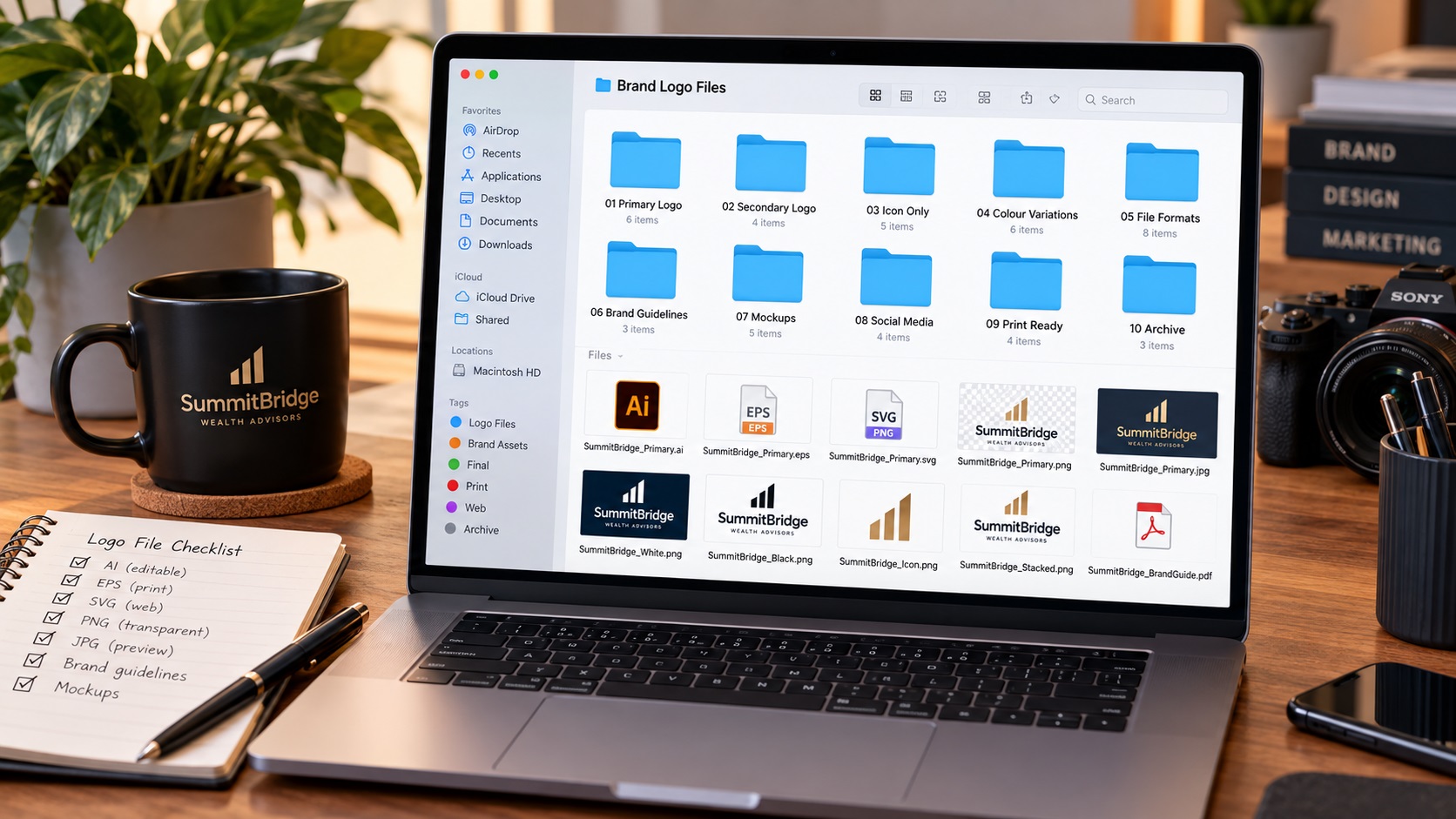
Logo file naming is one of those things that feels trivial until it goes wrong. A folder full of files named logo_new.png, logo_final_v3.ai, logo_USE_THIS_ONE.eps, and logo_actualfinal2.pdf is not a brand asset library. It is a guessing game that costs time every time someone needs the logo.
Good file naming is not complicated. It just requires thinking through what information each file name needs to convey and applying that consistently. Here is a system that works for businesses of any size and prevents the confusion that poor naming causes.
Why Logo File Naming Actually Matters
When a team member needs to send a logo to a supplier, they should be able to open the logo folder, immediately identify which file is correct for the situation, and send it without asking anyone. When a new designer joins and needs to build a new marketing piece, they should be able to find the right source file without a briefing.
When none of that is possible because the files are named confusingly, the consequences are real:
- The wrong version of the logo gets sent to a print supplier
- An outdated logo gets used because nobody could tell which was current
- Someone sends a PNG to a sign company that needed an EPS because the file extensions were not visible at a glance
- A team member emails asking which file to use, adding friction to a task that should take seconds
These are small individual costs that add up significantly over time, particularly as the business grows and more people interact with the brand files.
The Information a Logo File Name Should Convey
A useful logo file name tells you, without opening the file:
- Which brand or business it belongs to
- Which version of the logo it is (primary, icon, stacked, etc.)
- What color treatment it has (full color, white, black, reversed)
- What background it is designed for if relevant
- What file format it is
For most businesses, a practical naming format looks like this:
`brandname-logo-version-colorvariant.format`
Some examples of what this produces:
- `acme-logo-primary-fullcolor.ai`
- `acme-logo-primary-white.eps`
- `acme-logo-primary-black.svg`
- `acme-logo-stacked-fullcolor.pdf`
- `acme-logo-icon-fullcolor.png`
- `acme-logo-icon-white.png`
With names like these, a team member who needs the white version of the primary logo in EPS format for a sign company can find it without opening anything.
What to Include in Each Part of the Name
Brand Name
Use a consistent abbreviation or shortened form of your business name. Keep it short but recognisable. If your business name is long, a three or four letter code works. The brand name prefix makes it possible to search for all brand assets in a folder that may also contain other files.
Examples: acme, tbco, peakhvac, riv
Logo Version
Describe which version of the logo the file contains. Common version names:
- `primary` or `main` for the full primary mark
- `stacked` or `vertical` for a stacked layout
- `horizontal` for a wide horizontal layout
- `icon` or `symbol` or `mark` for the standalone symbol without wordmark
- `wordmark` for the text-only version without icon
- `monogram` for initial-based marks
Color Variant
Describe the color treatment. Common color variant names:
- `fullcolor` or `color` for the standard full color version
- `white` for the white version for use on dark backgrounds
- `black` for the solid black version
- `1color` for single color treatments that are not specifically black or white
- `reversed` for versions designed for reversed color contexts
- `darkbg` for versions specifically designed for dark backgrounds if they differ from the standard white version
File Format
The file extension (.ai, .eps, .svg, .pdf, .png) is technically already part of the file name, but making it visible is the point. Do not rely on file type icons in your operating system. Name files so the format is unambiguous even if icons are not displayed, as is common when sharing via email or cloud folders.
What Not to Include in File Names
Version Numbers
Version numbers like v1, v2, v3, final, new, and updated are the most common source of naming confusion. As soon as there is a v3, there is uncertainty about whether v2 is still needed. When there is a final and a new_final, nobody knows which is actually current.
Instead of version numbers, use clear version control through your folder structure. Have one current folder with no version numbers in file names, and an archive folder for superseded versions. The absence of a version number means the file is current.
Dates in the File Name
Dates in file names create clutter and do not solve the problem they are meant to solve. A file named logo_2024_03_15.png does not tell you whether that is the current version or an old one. A folder called Archive containing everything prior to the current version is cleaner.
Vague Qualifiers
Terms like new, updated, use_this_one, correct, latest, and good are meaningless without context and become confusing over time. Every qualifier that seemed useful when it was added becomes noise once time has passed.
Folder Structure to Go With the Naming System
File names work best alongside a clear folder structure:
Brand Assets
- Logo (current version files only)
- Vector Files (AI, EPS, SVG, PDF)
- Raster Files (PNG exports)
- Archive (older versions, clearly labelled with dates or project names so they can be identified if ever needed)
- Brand Colors (a document with all color values in hex, RGB, CMYK, Pantone)
- Fonts (font files or a document with font names and sources)
- Guidelines (brand style guide, usage notes)
The Logo folder contains only the current, approved files. If the logo is updated, the old files move to Archive and the new files replace them in the Logo folder, with the same naming convention applied.
Applying the System to an Existing Messy Folder
If you already have a folder of confusingly named logo files, here is a practical process to clean it up:
- Open the folder and identify which file is the most recent, correct version of each logo variant
- Create a new folder called Archive and move everything else into it
- Rename the current files using the naming system above
- Add any missing variants (white version, black version, etc.) if they need to be created
- Share the reorganised folder with everyone who uses the logo and explain the naming convention
Doing this once, properly, means the confusion does not recur.
Frequently Asked Questions
Do I need separate folders for each file format?
For smaller businesses, separating by format (Vector Files and Raster Files) is usually sufficient. For larger teams or agencies managing multiple brands, more granular subfolder structures may be useful. Start simple and add structure only if the current organisation creates confusion.
What if we have multiple brands or sub-brands?
Each brand gets its own top-level folder, using the same internal structure. The brand name prefix in each file name keeps files identifiable even if they end up outside their folder.
Our designer always sends files with their own naming. How do we handle this?
Rename files when you receive them before saving them to your brand folder. This takes thirty seconds and keeps your asset library consistent regardless of what naming the designer used.
We use cloud storage. Does the naming system still apply?
Yes. Cloud storage searches by file name and the same confusion around poorly named files exists in Google Drive and Dropbox as on a local hard drive. Good naming makes search more reliable and folder navigation clearer regardless of where files are stored.
Do we need the brand name prefix if all logo files are in a dedicated brand folder?
Technically no, but files often end up outside their folder through sharing, emailing, or downloading. A file named icon-white.png is ambiguous without context. A file named acme-logo-icon-white.png is unambiguous even as a standalone file.
Need artwork converted?
VectorFixer can redraw logos, convert PNG files to SVG, and prepare clean production-ready vector files.
Contact Us