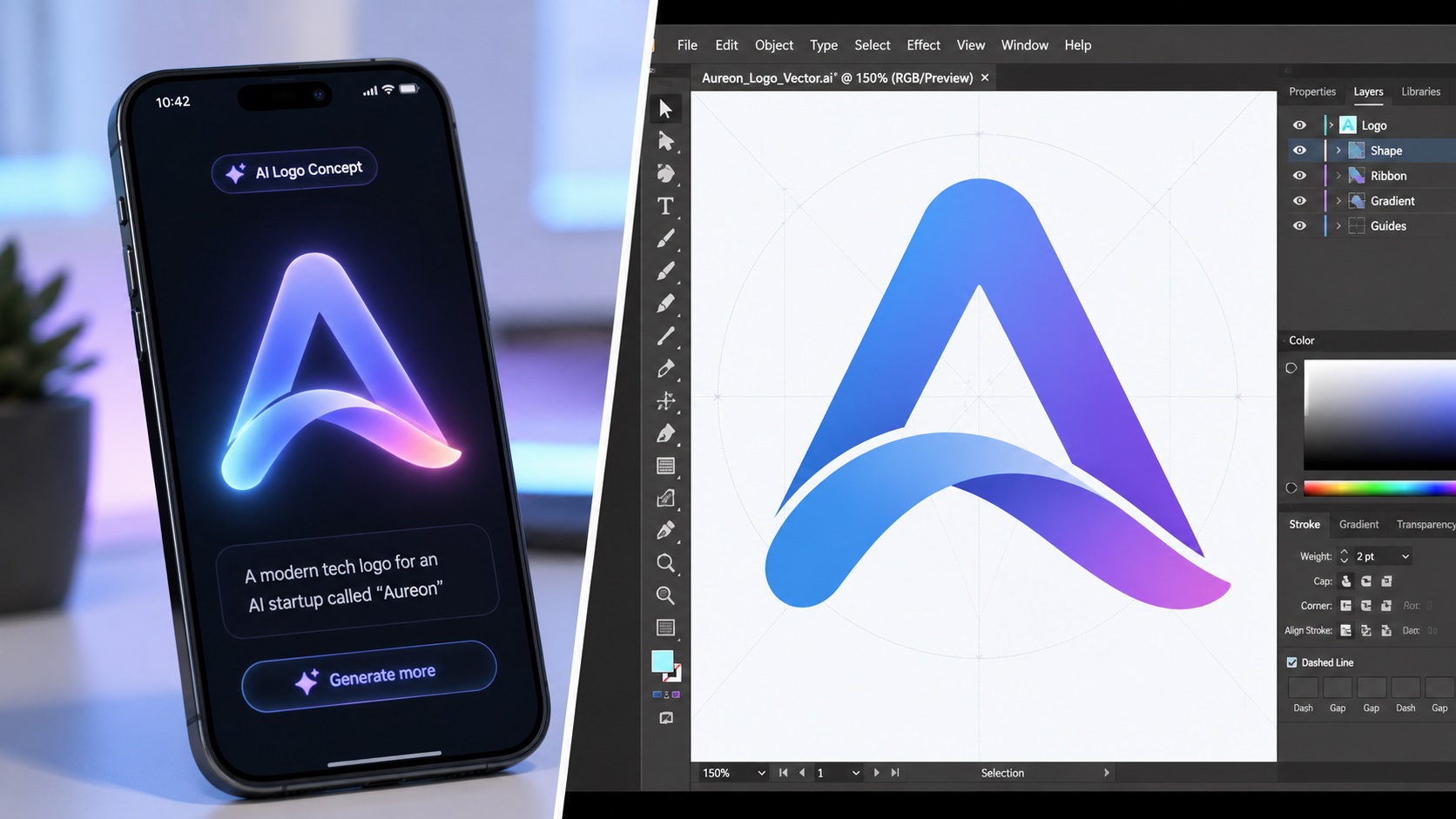
AI logo generators are everywhere now. Type in a prompt, wait a few seconds, and you have something that looks like a real logo. It is fast, it is often surprisingly nice looking, and for a lot of small business owners it feels like the design problem is solved.
Then reality hits. You try to put that logo on a sign, a shirt, or a business card, and things start to break down.
Here is what actually goes wrong with AI-generated logos, and what it takes to turn one into something usable.
Why AI Logos Look Good on Screen but Fail in Print
Every AI image generator, no matter how advanced, outputs a raster image. That means it is a grid of pixels, just like a photo. On a screen, this can look crisp and clean. The moment you try to use that file for anything physical, the limitations show up fast.
Fuzzy or Soft Edges
AI generated images often have soft, slightly blurred edges between shapes and colors. On screen this can look fine, even stylish. But when you try to trace or print those edges, the softness becomes a problem. Edges that should be sharp lines end up looking fuzzy or have strange color halos around them.
Broken or Garbled Text
If your AI-generated logo includes any text, there is a good chance it has subtle issues. Letters might be slightly uneven, oddly spaced, or have small distortions that are easy to miss at a glance but become obvious once the logo is enlarged.
Hidden Gradients Everywhere
Even logos that look like flat, solid colors often have hundreds of tiny color variations when you zoom in. This is just how AI image generation works. These micro-gradients are invisible at normal size but cause major headaches during vector conversion.
Low Resolution
Many AI tools output images at a fairly small pixel size by default. A logo that looks sharp at the size you generated it can fall apart the moment you try to use it for a banner, sign, or large print.
Why "Just Use Auto Trace" Does Not Work
If you have looked into this at all, you have probably seen advice to just run your AI logo through Illustrator's Image Trace or a free online vectorizer. Sometimes this is suggested as a complete fix. In practice, it rarely is.
Here is what tends to happen. Auto trace tools follow color boundaries exactly as they appear in the image. Remember those hidden micro-gradients? Auto trace turns each tiny color variation into its own separate shape. A logo that should have five or six clean color areas can end up as a vector file with thousands of tiny overlapping shapes.
The result technically is a vector file. But it is a mess. It is hard to edit, slow to render, and often still looks rough at large sizes because the underlying shapes are so jagged and fragmented.
Garbled text gets worse with auto trace too. Instead of fixing the uneven letterforms, auto trace faithfully reproduces every flaw as part of the vector shape.
What It Actually Takes to Fix an AI Logo
A proper fix usually involves a designer rebuilding the logo by hand, using the AI output as a reference rather than as the final source.
Rebuilding Shapes Cleanly
Instead of tracing every pixel exactly as it appears, a designer recreates the intended shapes using clean, smooth paths. This removes the fuzzy edges, fixes asymmetry, and results in a logo that looks intentional rather than generated.
Recreating Text Properly
If your AI logo includes text, a designer will typically rebuild that text using an actual font rather than trying to trace the garbled letterforms. This gives you text that is sharp, properly spaced, and editable.
Simplifying Colors
The hundreds of micro-gradient colors get consolidated into a clean, limited color palette that matches the original look without the noise. This makes the file usable for print, embroidery, and signage.
Separating Icon and Wordmark
If your AI-generated logo combines an icon and text into one image, a designer can often separate these into individual elements. This gives you more flexibility, such as using just the icon on social media profile pictures or merchandise where the full logo would be too small to read.
Getting Better Results From AI Generators (For Next Time)
If you are still in the process of generating logo concepts and have not settled on a final design, a few adjustments to your approach can make the eventual cleanup easier.
- Ask for high contrast, flat colors, and minimal shading in your prompts
- Avoid styles with heavy texture, fine cross-hatching, or photorealistic shading
- Generate at the largest resolution the tool allows
- If possible, request separate versions of the icon alone and the text alone
- Avoid extremely intricate designs with lots of small details
None of this guarantees a print-ready result. AI generators are not built to output production logos. But starting from a cleaner image does make the eventual vectorization process smoother.
Frequently Asked Questions
Can any AI-generated logo be turned into a vector file?
Yes, in the sense that a designer can redraw it as a vector. Whether the result looks good depends on how clear the original concept was. A simple, high-contrast design is much easier to rebuild than something with lots of fine detail or photorealistic effects.
Will the vector version look exactly like my AI logo?
It should look very close, but small details like text shape, exact edge softness, or micro-gradients usually get cleaned up or simplified in the process. The overall design and colors stay true to the original.
Is it cheaper to just keep using the AI-generated image?
For digital use like social media or a website, maybe. But the moment you need to print, embroider, or scale your logo for signage, a raster AI image will cause problems. A one-time vector conversion solves this permanently.
Do I need to tell the designer it came from an AI tool?
It helps. Knowing the source helps a designer anticipate common issues like hidden gradients or garbled text and address them directly.
Can I use auto trace as a starting point and then have a designer fix it?
Usually it is faster for a designer to work from the original AI image directly rather than untangling a messy auto-traced file first. The original image, even with its flaws, is often a cleaner starting reference.
Need artwork converted?
VectorFixer can redraw logos, convert PNG files to SVG, and prepare clean production-ready vector files.
Contact Us