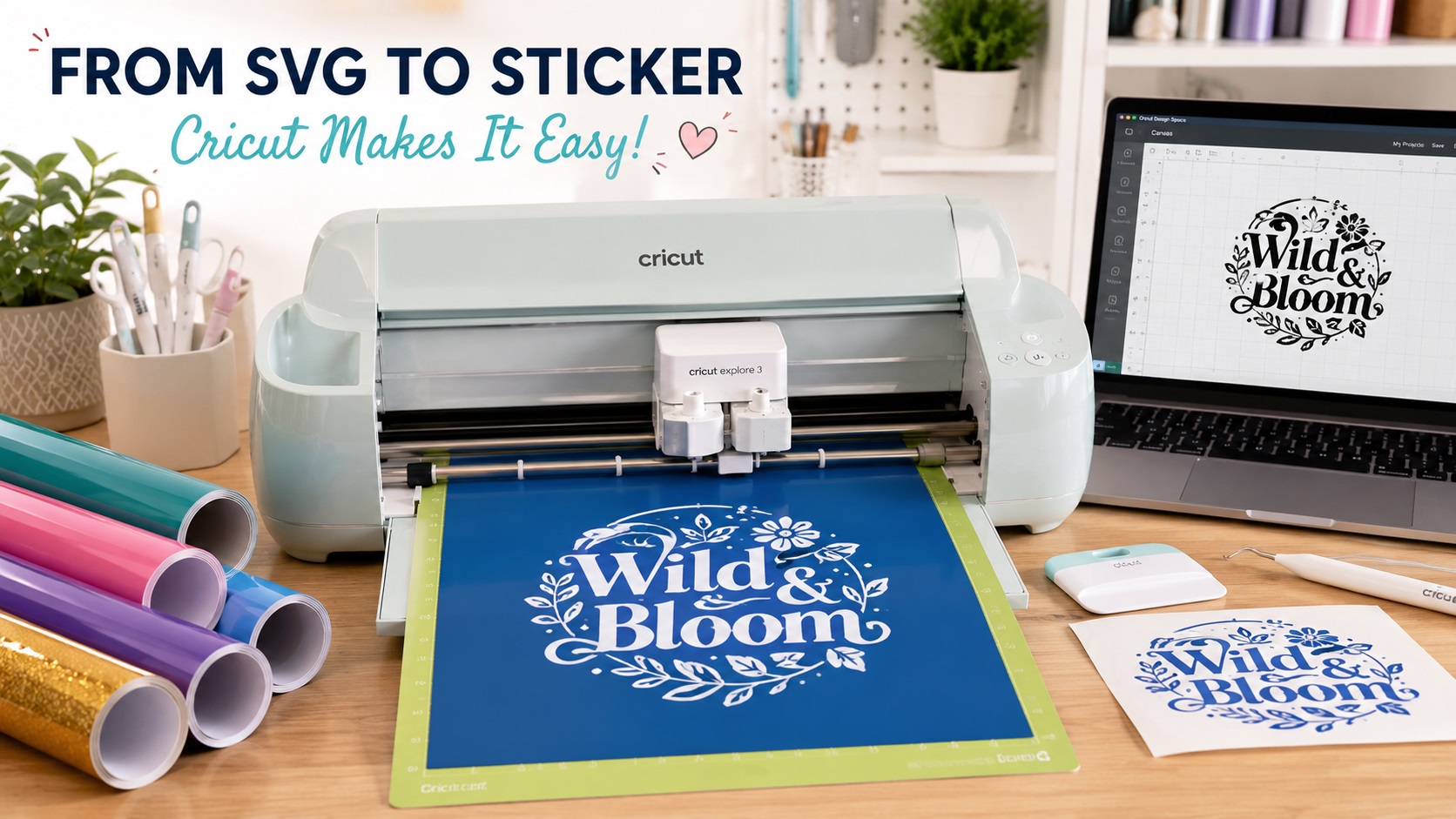
If you have a Cricut machine, you already know that SVG files are what it really wants to work with. You can drag your design in, resize it however you need, and the blade follows the paths exactly. It is clean, it is precise, and it just works.
The problem is that most people do not have SVG versions of their logos or designs. They have a PNG. And when you try to cut from a PNG, things get messy fast.
Here is a clear look at why Cricut needs SVG files, what goes wrong when you try to use PNG instead, and how to get a proper SVG that actually cuts cleanly.
Why Cricut Works So Well With SVG Files
Cricut Design Space reads SVG files differently from raster images. When you upload an SVG, the software can see every individual path and shape in the file. It knows exactly where each cut line is, which layers belong together, and how to separate the pieces by color or cut group.
This means when the blade comes down, it follows a precise mathematical path. Not an approximation. Not a guess based on where the edge of a pixel is. The actual line.
SVG files also scale perfectly. You can take an SVG that was created at 2 inches and resize it to 18 inches in Design Space without any change in quality. The cut lines stay just as sharp.
What Happens When You Try to Cut From a PNG
Cricut Design Space does allow you to upload PNG files, but it handles them differently. It uses a built-in process to try to detect the edges of your image and create a cut path around them. For very simple designs with clean, high-contrast edges, this sometimes works okay.
For logos, it usually does not go well.
Logos often have soft anti-aliased edges, subtle shadows, or multiple colors that blend together. The edge detection tool in Design Space struggles with these. You might end up with cut lines that wobble, extra paths around small details, missing inner sections of letters, or a shape that looks roughly right on screen but cuts messy on your material.
The more complex your logo, the worse this tends to get.
The Right Way to Get a Cut-Ready SVG From a PNG Logo
There are a few different ways to do this, and they produce very different results.
Option 1: Online Automatic Converters
There are free and paid tools online that claim to convert PNG to SVG instantly. You upload your file, click a button, and download an SVG.
These can work for very simple images, like a solid black shape with clean edges. For logos with multiple colors, text, fine details, or any kind of gradient or soft shading, automatic converters tend to produce SVG files with messy, jagged paths and far too many anchor points. The file might technically be an SVG, but it will cut poorly and look rough.
Option 2: Manual Tracing in Illustrator or Inkscape
A more reliable approach is to open the PNG in vector software and trace it by hand, or use the auto-trace tools in that software with careful adjustments. This takes skill and time, but it gives you much more control over the result.
The issue most people run into is not knowing how to use the pen tool in Illustrator, or not having access to the software at all. Inkscape is free and can handle basic tracing, but it still has a learning curve.
Option 3: Professional Vector Tracing
Handing your PNG to a professional vector tracing service means someone who works with paths every day redraws your logo properly. The result is a clean SVG with smooth curves, accurate shapes, properly separated color layers, and no extra junk paths hiding in the file.
For Cricut users who want a logo or custom design cut cleanly and consistently, a professionally traced SVG is the most reliable option.
What Makes a Good SVG for Cricut Cutting?
Not every SVG file is created equal. A good SVG for Cricut should have:
- Closed paths (open paths will not cut correctly)
- Clean, smooth curves without unnecessary anchor points
- Separate layers or groups for each color or cut pass
- No hidden elements, stray paths, or locked shapes
- No embedded raster images inside the SVG
- Correct sizing relative to your intended cut dimensions
A poorly built SVG will either cut wrong or require a lot of manual fixing inside Design Space before you can use it.
Tips for Getting Better Results From SVG Files in Design Space
Even with a great SVG, a few habits will help your cuts come out cleaner:
- Always do a test cut on a small piece of scrap material before committing your full sheet
- Check the Layers panel to confirm your file is set up as a Cut file, not a Print file
- Use the Contour tool to hide any paths or details you do not want to cut
- Resize your design before sending to the machine, not after, to make sure the proportions are right
- Make sure your blade is sharp and your mat is clean for best results on intricate designs
Frequently Asked Questions
Can I use a JPG file with Cricut instead of SVG?
You can upload JPGs to Design Space, but they go through the same raster image handling as PNGs. For cutting, SVG is always the better choice. JPGs also do not support transparency, which adds extra complications.
Will a free online PNG to SVG converter work for my logo?
Sometimes, for very simple designs. For most logos with text, multiple colors, or any fine detail, the result usually needs significant cleanup before it will cut cleanly on a Cricut.
How do I know if an SVG I downloaded is cut-ready?
Upload it to Design Space and check the Layers panel. It should show as a Cut layer, not a Print layer. Zoom in on the paths on the canvas to check that the edges look smooth and that the shapes are closed.
Can I resize an SVG in Design Space without losing quality?
Yes. This is one of the main benefits of using SVG files. You can scale them to any size without any loss of sharpness or detail.
What if my logo has letters cut out of a shape?
This is a common design element and it works fine in Cricut as long as the SVG is set up correctly with the letter shapes properly cut out of the background shape using a boolean operation. If the cutouts are not set up right, you will just end up with overlapping solid shapes instead.
Need artwork converted?
VectorFixer can redraw logos, convert PNG files to SVG, and prepare clean production-ready vector files.
Contact Us