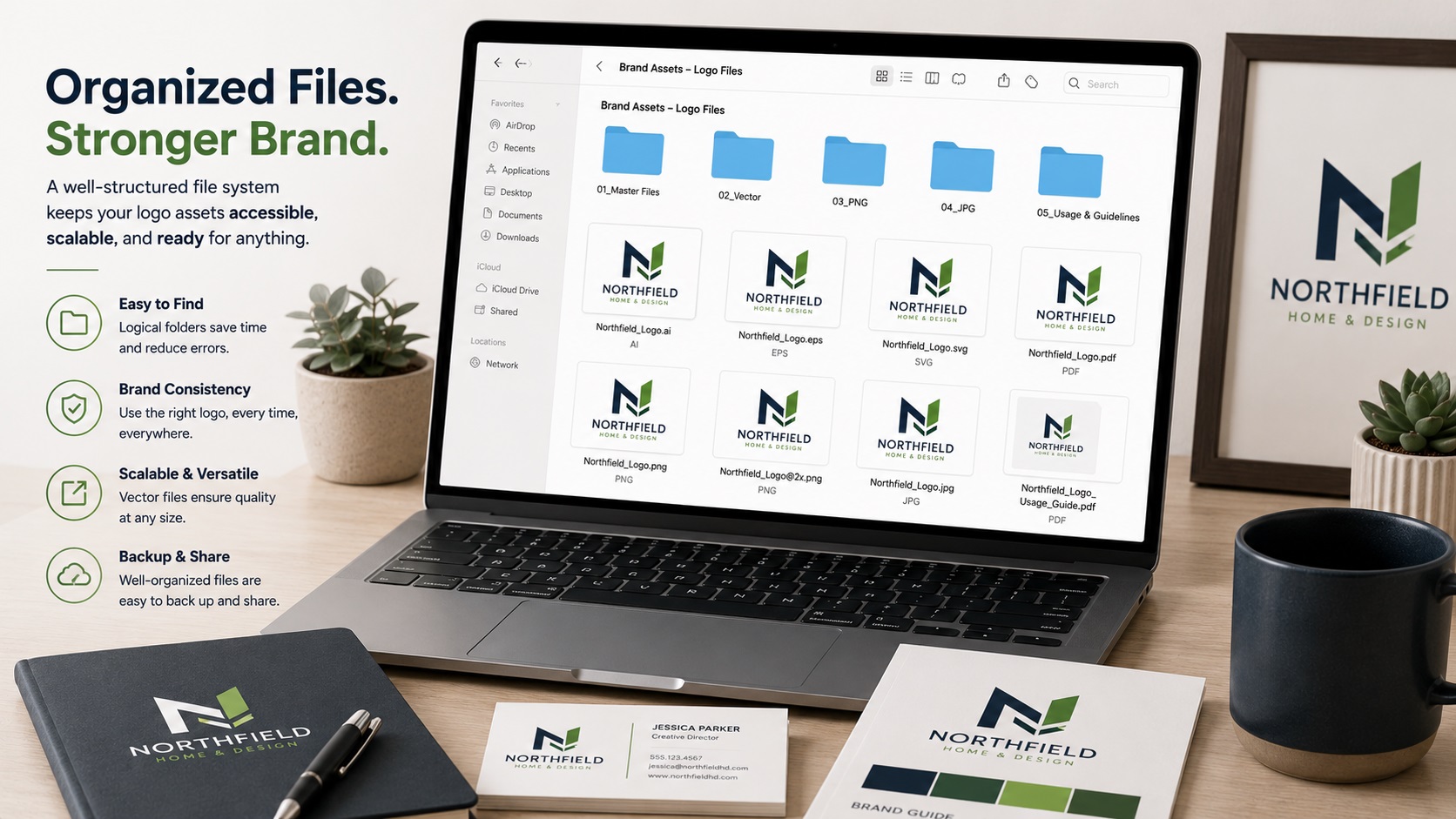
Most business owners have been in this situation at least once. A printer asks for the logo file. You dig through old emails, check a few folders, find three different versions with names like logo_final_v2_ACTUAL_FINAL.png, and have no idea which one is correct or whether any of them is the right format.
It is a small problem that wastes a surprising amount of time. And it tends to happen repeatedly unless you set up a simple system once and stick to it.
Here is a straightforward way to organize your logo files so you always know what you have, where it is, and which version to use.
Start With a Master Folder
Create one folder on your computer or cloud storage called something like Brand Assets or Logo Files. Everything related to your logo lives here. No exceptions.
The biggest cause of logo chaos is files scattered across downloads folders, email attachments, desktop clutter, and old project folders. Centralizing everything into one location fixes most of the problem immediately.
Understand What Files You Should Have
Before you can organize your files properly, it helps to know what you should actually have. A complete set of logo files typically includes:
Vector files (for print and production):
- AI file (editable source file for Adobe Illustrator)
- EPS file (widely accepted by print shops, sign shops, and embroidery services)
- SVG file (for web use, cutting machines, and digital applications)
- PDF file (for easy sharing with anyone who needs to see or use the logo)
Raster files (for digital and everyday use):
- PNG with transparent background (for use on websites, presentations, and documents)
- PNG on white background (for situations where transparency causes problems)
- JPG (for email signatures, older software, and situations where PNG is not accepted)
If you do not have vector files, that is the gap to address first. All the organization in the world will not help if you only have raster files and then need something for a sign shop. Getting your logo professionally vectorized gives you the foundation everything else is built on.
Create a Clear Subfolder Structure
Inside your main Brand Assets folder, set up subfolders by file type or use case. A simple structure that works well for most small businesses:
Brand Assets
- Vector Files (AI, EPS, SVG, PDF)
- PNG Files (transparent, white background, dark background versions)
- JPG Files
- Social Media (pre-sized versions for specific platforms)
- Fonts (if you use specific fonts as part of your brand)
- Brand Colors (a document with your hex, RGB, CMYK, and Pantone values)
This does not need to be complicated. The goal is that any file you need can be found in under thirty seconds.
Use Consistent File Naming
Random file names are the main reason logo folders become confusing over time. A clear naming system makes it immediately obvious what each file is.
A simple format that works well:
`businessname-logo-version-colorvariant.format`
Examples:
- `acmecleaning-logo-primary-fullcolor.ai`
- `acmecleaning-logo-primary-white.svg`
- `acmecleaning-logo-icon-only-fullcolor.png`
- `acmecleaning-logo-horizontal-black.eps`
With names like these, you can scan a folder and immediately know what each file is without opening it.
Know Which Version to Use When
Having all the files is only useful if you know which one to reach for in different situations. Here is a quick reference:
Print shops, sign shops, screen printers: Send the EPS or AI file. If they ask for a PDF, export from your AI file.
Embroidery digitizers: EPS or AI.
Your website: SVG if your platform supports it, or a high-resolution PNG with transparent background.
Email signatures: PNG or JPG, usually a smaller version in pixels.
Presentations and Word documents: PNG with transparent background.
Cricut or cutting machines: SVG.
Social media profile pictures: PNG, usually resized to the specific platform's requirements.
Keeping a short reference document like this inside your Brand Assets folder saves time every time someone on your team needs to find the right file.
Back Up Your Files in More Than One Place
This is the step most people skip until they need it. Hard drives fail. Computers get lost or stolen. Accidental deletions happen.
Keep your logo files backed up in at least two places:
- A cloud storage service such as Google Drive, Dropbox, or iCloud
- An external hard drive or a second device
Cloud storage is especially useful because it makes your files accessible from any device and easy to share with printers, designers, or vendors without sending email attachments.
If you are using a cloud service for your business anyway, create a shared Brand Assets folder that anyone on your team can access. This prevents the situation where one person has the logo files on their personal computer and nobody else can find them.
What to Do if You Are Starting From Scratch
If you currently have a disorganized mess of logo files or only a single low-quality PNG, now is a good time to sort it out properly.
Start by gathering every version of your logo you can find, from old emails, your website, business cards, anywhere it appears. Then:
- Identify the highest quality version you have
- If you do not have vector files, get the logo professionally vectorized
- Set up your folder structure
- Name everything consistently
- Back it up to the cloud
Doing this once, properly, means you will never have to hunt for your logo again.
Frequently Asked Questions
How many versions of my logo do I actually need?
At minimum, you need a full-color version, a single-color version (useful for embroidery, single-color printing, and situations where color is limited), and a white version for use on dark backgrounds. Having a horizontal and a stacked version is also useful if your logo has both orientations.
Should I keep old versions of my logo?
Yes, but put them in a separate subfolder clearly labeled as archived. Do not delete them since old files can occasionally be needed as reference, but keep them separate from your current files to avoid confusion.
Who should have access to my logo files?
Anyone who might need to use or share your logo: anyone on your team, your web developer, your marketing contacts. The easiest approach is a shared cloud folder that you control. You can share the link with vendors when needed rather than emailing files every time.
What if I only have a PNG and need to provide a vector file?
You need to have the logo professionally vectorized. Once you have the vector files, add them to your organized folder so you are set for all future requests.
Do fonts count as part of my brand assets?
Yes. If your logo uses a specific font, or your brand guidelines specify fonts for headings and body text, keep those font files in your Brand Assets folder. This makes it easy to share them with designers and ensures consistency.
Need artwork converted?
VectorFixer can redraw logos, convert PNG files to SVG, and prepare clean production-ready vector files.
Contact Us