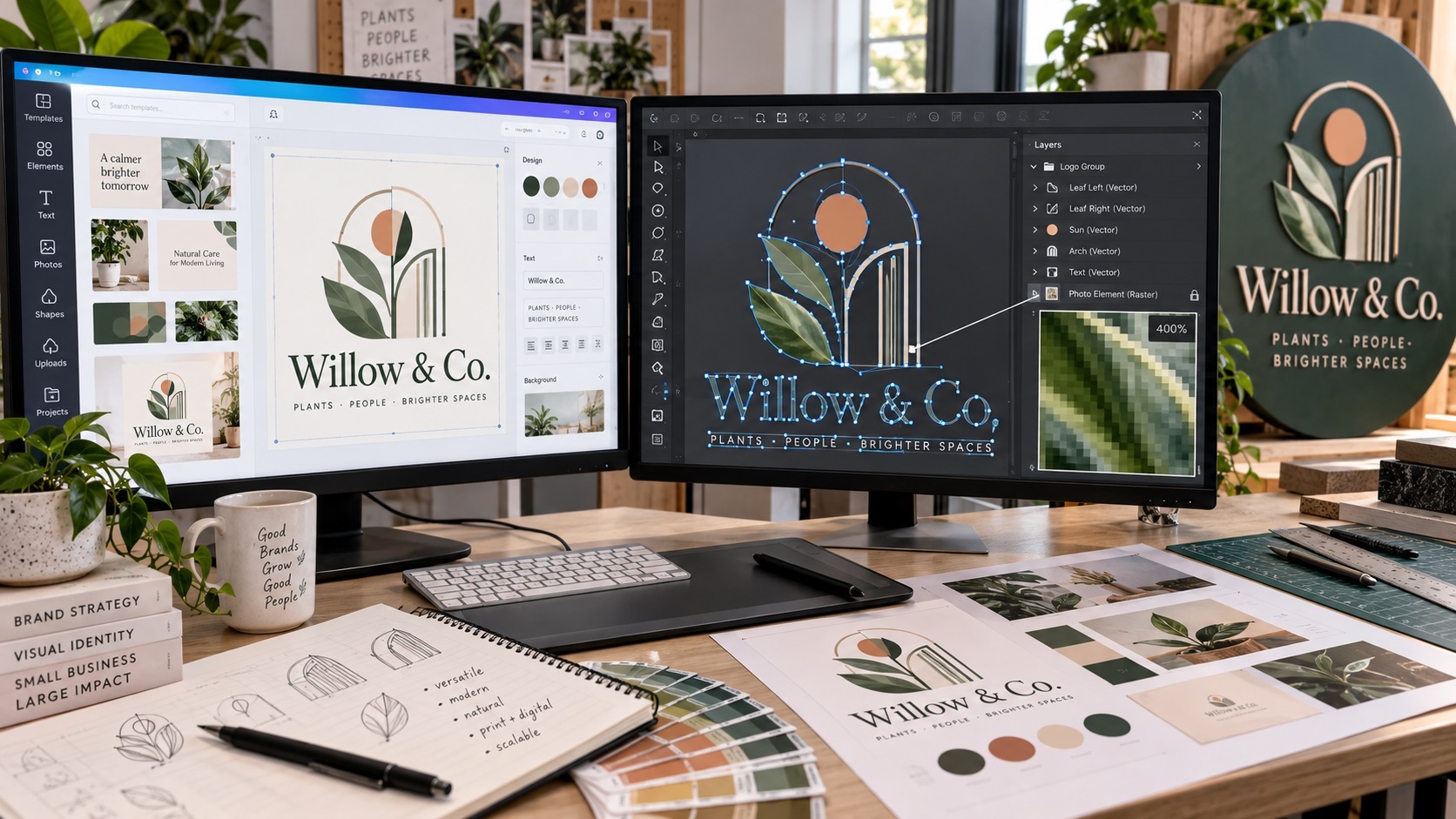
Canva makes it easy to create a logo and download it as SVG. That leads to a very reasonable question: if the file says SVG, is the logo now a real vector file that any printer can use?
Sometimes yes. Sometimes only partly.
SVG is a vector-capable file format, but the file can contain different kinds of content. A simple logo built from vector shapes may export cleanly. A logo that includes an uploaded PNG, JPG, photo, texture, or flattened graphic can still carry pixel-based artwork inside the SVG.
That is why a printer may accept one Canva SVG and reject another.
What does SVG actually mean?
SVG stands for Scalable Vector Graphics.
A true vector logo is built from mathematical paths, shapes, curves, and points. Those shapes can be enlarged without creating visible pixels along the edges.
That makes vector artwork useful for:
- Large signs
- Vehicle graphics
- Screen printing
- Vinyl cutting
- Packaging
- Engraving
- Promotional products
- Logo editing
- Web graphics
But the SVG format can also contain embedded raster images.
That means the outer file can be an SVG while part of the artwork inside is still a PNG or JPG.
The extension tells you the type of container. It does not automatically prove that every element inside is vector.
Can Canva export real vector artwork?
Yes, Canva can export SVG files, and vector-native elements can remain scalable.
If your logo is built from simple shapes, compatible icons, and other vector elements, the exported SVG may contain useful vector paths.
Problems are more likely when the design includes:
- An uploaded PNG logo
- A JPG image
- A screenshot
- A flattened illustration
- A photo
- Certain textures or image effects
- Artwork imported from another source as pixels
Exporting one of those designs as SVG does not automatically redraw the pixel artwork into clean paths.
The raster element can simply be carried inside the SVG file.
A common example: the uploaded PNG logo
Imagine you created a business logo years ago and only have a transparent PNG.
You upload that PNG into Canva, place it on a brand sheet, then download the page as SVG.
The file is now named something like:
Business-Logo.svg
But the original logo artwork may still be the same pixel image inside that SVG.
The file format changed. The underlying logo did not necessarily become vector.
If you enlarge the logo enough, the pixel limits can still appear.
If you need actual vector paths, the artwork has to be recreated or properly vectorized. VectorFixer offers PNG and JPG to SVG conversion for exactly this situation.
Why printers care about this
A digital printer producing a small flyer may be able to work with a good raster image without any problem.
A sign shop, vinyl cutter, engraver, screen printer, or other production vendor may need actual paths.
For example, a vinyl cutter needs a path to follow. A cutting machine cannot use a blurry pixel edge as reliably as a clean vector contour.
A large sign can also expose weaknesses in a small embedded raster image. The logo may look sharp at 2 inches wide but soft when enlarged to several feet.
This is why the question is not simply, "Is this an SVG?"
The better question is, "What is actually inside the SVG?"
How to check whether a Canva SVG is truly vector
You do not need to be a production designer to perform a few useful checks.
1. Zoom in very far
Open the SVG in software that supports vector files and zoom in closely.
Clean vector paths should remain sharp.
If part of the logo becomes visibly pixelated while other parts stay crisp, the file probably contains a raster element.
2. Look for anchor points
In Adobe Illustrator or similar vector software, select the artwork.
True vector shapes normally show editable paths and anchor points.
If you click part of the logo and it behaves like one placed image instead of individual vector shapes, that part may be raster.
3. Check whether the artwork can be edited as shapes
Try selecting individual letters, icons, outlines, or colored shapes.
A clean production logo usually allows a designer to inspect and edit the underlying geometry.
An embedded image behaves more like a photograph placed inside the document.
4. Ask the printer to inspect it
If you are unsure, send the file before production and ask whether the logo contains usable vector paths.
A printer or prepress operator can often tell quickly whether the file is suitable for the job.
What about Canva PDF Print?
Canva's PDF Print export is useful for many print jobs. Canva supports features such as higher-resolution print output, bleed, crop marks, and print-oriented color options.
That does not mean every logo inside the PDF is vector.
PDF is also a container format. It can hold vector shapes, text, raster images, or a combination of all three.
If you place a small PNG logo inside a Canva design and export PDF Print, the PNG can remain a raster image inside the PDF.
The PDF itself may be perfectly valid, but the logo may still have limited resolution.
This matters most when the logo needs to be extracted, enlarged, cut, engraved, or reused separately from the page layout.
SVG versus PDF Print: which should you send?
The answer depends on what the supplier is producing.
For a printed flyer, brochure, or card designed completely in Canva, the printer may ask for PDF Print with bleed and crop settings.
For a standalone logo that needs to be resized, cut, engraved, edited, or used across many production methods, a clean SVG, EPS, AI, or vector PDF is usually more useful.
If the printer gives you specific artwork instructions, follow those instructions rather than choosing a format based only on the file extension.
Does downloading as SVG convert a JPG into vector?
No.
Changing the export format is not the same thing as rebuilding the image as vector paths.
This is one of the most important points for small business owners.
These actions do not automatically vectorize a logo:
- Saving a JPG as PDF
- Placing a PNG in Illustrator and saving as AI
- Exporting a raster logo from Canva as SVG
- Renaming a file extension
- Putting a screenshot inside an EPS file
The file may open in vector software, but the original pixel artwork can still be inside it.
What if the logo was created entirely in Canva?
If the logo was built directly in Canva from simple scalable elements, the SVG export may be perfectly usable for many applications.
You should still check a few things before treating it as your permanent master logo file:
- Are all elements actually vector?
- Is the text handled correctly?
- Are the colors correct?
- Are there unnecessary masks or groups?
- Does the logo have clean transparent space around it?
- Does it open correctly outside Canva?
- Can your production vendor use it?
A clean result does not need to be rebuilt just because it came from Canva.
The goal is not to reject the tool. The goal is to inspect the output.
What about fonts in Canva SVG files?
Text is another area where production files can become complicated.
A logo may depend on a specific font that the printer does not have installed. Some workflows preserve text correctly, while others may handle fonts differently when the file is opened in another program.
For a final production logo, many printers prefer important logo lettering to be converted into vector outlines.
That protects the shape of the lettering from font substitution.
Keep an editable master before outlining the text so you do not lose the ability to make future changes.
Can Canva SVG files work for Cricut and cutting machines?
They can, especially when the design contains clean vector shapes.
Cutting workflows are less forgiving of messy artwork, however.
A production-ready cut file should have clear paths without unnecessary overlaps, stray points, duplicate shapes, or embedded pixel images that the cutter cannot follow directly.
If the SVG imports strangely, creates unexpected layers, or gives you rough cut edges, the file may need cleanup.
A simple logo should usually have simple geometry.
Why does my Canva SVG still look blurry?
There are several possible reasons.
The original artwork was raster
A PNG or JPG was embedded inside the SVG.
The preview software is rasterizing the display
Some apps show SVG previews differently. Open the file in proper vector software before assuming the artwork itself is bad.
The SVG contains effects that are being rendered as images
Certain effects, textures, or complex visual treatments can be represented differently when exported.
The logo was already low quality before Canva
Canva cannot restore detail that does not exist in the source image simply by changing the export format.
If the source logo is visibly damaged, a manual logo vectorization service can rebuild the shapes and lettering into cleaner vector artwork.
A practical test before sending a Canva logo to a printer
Use this quick checklist:
- Export the SVG from Canva.
- Open it in a vector program if possible.
- Zoom in closely on the logo.
- Select the main artwork.
- Check whether you see vector paths and anchor points.
- Inspect uploaded images separately from Canva-native shapes.
- Confirm that the background is transparent where needed.
- Check the spelling and proportions.
- Confirm the printer's required file format.
- Keep the original Canva design as an editable backup.
If the file passes those checks and the printer is happy with it, there may be nothing else to do.
When should a Canva logo be professionally vectorized?
You probably need a proper redraw or vector conversion if:
- The only logo source is a small PNG or JPG.
- The SVG contains an embedded raster logo.
- The logo becomes soft when enlarged.
- A sign shop says it needs real paths.
- A vinyl cutter cannot use the current file.
- The printer says the file is not production ready.
- The lettering is rough or distorted.
- Automatic tracing creates messy edges.
- You want a reusable logo package for multiple suppliers.
In those situations, the goal is not to redesign the brand. It is to recreate the existing artwork cleanly enough to use across print, signage, apparel, web, and production.
What files should you keep after the logo is fixed?
A practical business logo package usually includes:
- AI source file
- EPS file
- SVG file
- Vector PDF
- Transparent PNG
- One-color logo
- White or reversed logo
That gives you both scalable production files and easy digital files.
You can continue using Canva for social media, flyers, presentations, and other brand materials while keeping the clean vector master separate.
Frequently asked questions
Is every Canva SVG a real vector file?
No. Canva can export real vector elements, but an SVG can also contain raster images. The result depends on what your design is made from.
If my printer accepts the Canva SVG, do I need to convert it again?
No. If the printer has inspected the file and it works for the production method, there is no reason to rebuild it only because it came from Canva.
Can I turn a Canva PNG into vector just by downloading SVG?
Not reliably. An uploaded PNG can remain raster content inside the SVG. Proper vectorization requires converting or recreating the artwork as paths.
Is Canva PDF Print good enough for professional printing?
It can be very useful for complete print layouts, especially when the printer wants a print PDF. The important question is whether individual logo elements inside the layout have enough quality for the intended size and production process.
How do I know if my SVG contains an image?
Open it in vector software and inspect the artwork. If the logo behaves like a placed image rather than editable shapes and paths, it may contain raster content.
Keep Canva for designing, but keep a clean master logo too
Canva is useful because it makes everyday brand design accessible. You do not have to stop using it.
The safer approach is to keep a proper master logo file outside the Canva project, then upload that clean asset whenever you create new designs.
If your current Canva logo started as a PNG, JPG, screenshot, or other pixel image, send it to VectorFix if you want it checked and rebuilt as clean vector artwork for printers and other suppliers.
Need artwork converted?
VectorFixer can redraw logos, convert PNG files to SVG, and prepare clean production-ready vector files.
Contact Us