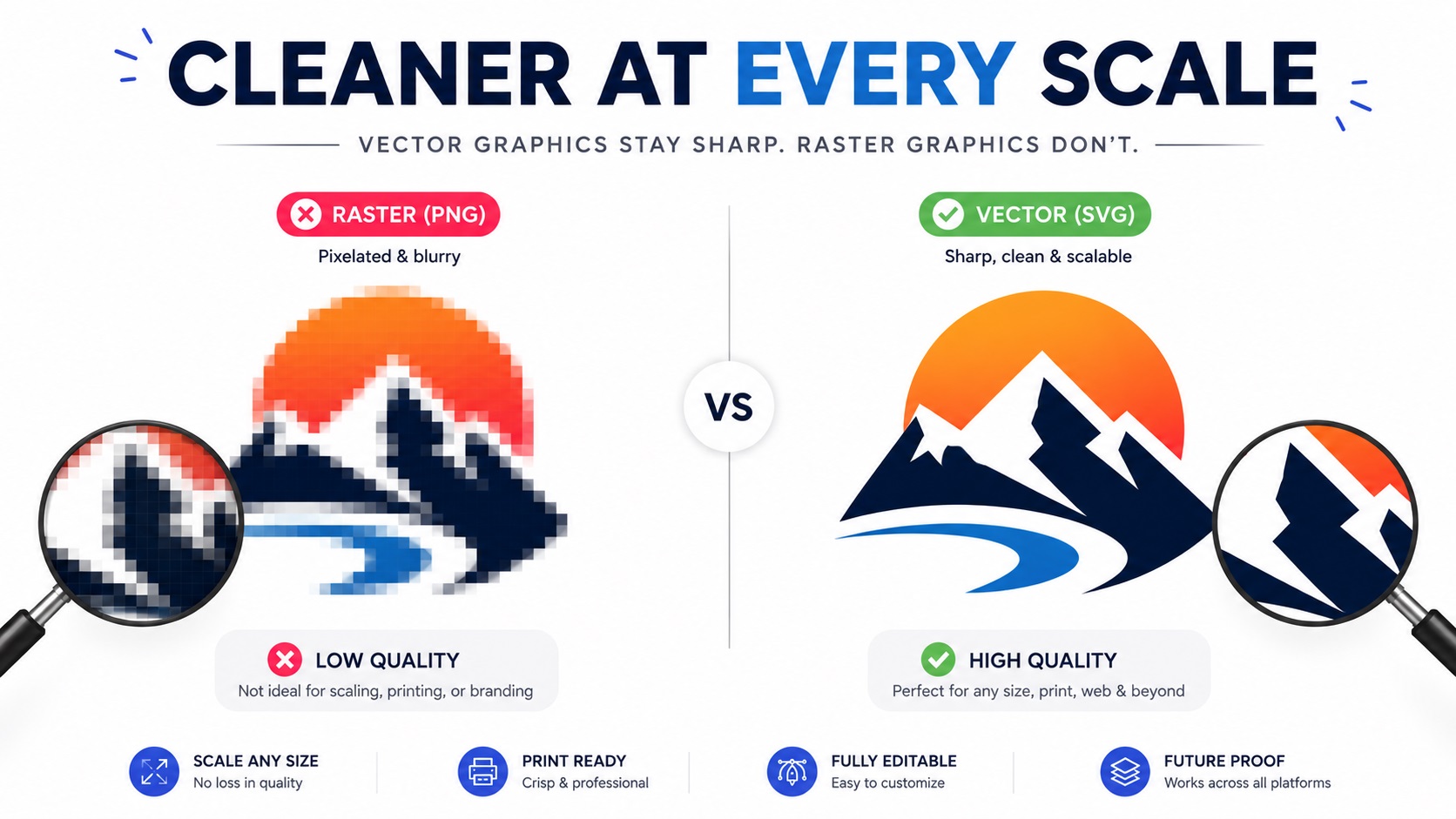
You go to get something printed and the shop tells you the logo is too low quality. Or maybe you already know it is blurry because every time you try to resize it, it turns into a pixelated mess. Either way, you are stuck with a logo that does not work for professional printing, and you need to know what your options actually are.
Here is an honest look at what causes blurry logos, what fixes work, and what does not.
Why Your Logo Looks Fine on Screen but Blurry When Printed
Screens display images at around 72 to 96 dots per inch. Print requires much more information, typically 300 dots per inch or higher for sharp results. A logo that looks clean on your laptop screen might only be 200 pixels wide. That is more than enough for a website header, but nowhere near enough for even a small printed piece.
When you send that file to a printer and ask them to print it at business card size, the software has to stretch those 200 pixels to cover the required area. It fills in the gaps by guessing, and the result is a soft, blurry image.
The further you push a small raster image beyond its original size, the worse it looks. At banner or sign scale, a logo that started small will look completely unusable.
The Quick Fix That Does Not Actually Fix Anything
The most common mistake people make is opening their logo in an image editor and increasing the resolution or the canvas size. You might change the DPI from 72 to 300, save the file, and feel like the problem is solved.
It is not. Increasing the resolution setting of a raster file does not add any new information to the image. It just changes how the file is labeled. The actual pixel count stays exactly the same. A 200-pixel-wide logo saved at 300 DPI is still a 200-pixel-wide logo. The printer will still see a blurry image.
AI upscaling tools have gotten better at adding pixels in a convincing way, and they can help in some cases. But even a good AI upscaler has limits, especially with logos that have sharp text or clean geometric shapes. Upscaled images often still look slightly soft compared to a proper vector file.
What Actually Solves a Blurry Logo
For Small Print Jobs: High-Quality Upscaling
If you need your logo on a business card, a small flyer, or a basic document, an AI upscaling tool might get you close enough. Tools like Adobe Photoshop's Super Resolution or dedicated upscalers can add pixels intelligently. The result is not perfect, but it can be usable at small sizes.
This is not a long-term solution and it will not help you for large-format printing. But for a one-off small print job, it might get you through.
For Any Professional Use: Vector Conversion
The real fix, the one that solves the problem for every size and every use case permanently, is converting your logo to a vector file.
A vector file does not use pixels. It stores your logo as a set of mathematical paths. That means it can be printed at any size, from a tiny label to a full building wrap, and it stays perfectly sharp every time. No blurring, no pixelation, no limits.
This process is called vector tracing or vectorization. A designer redraws your logo by hand using vector software. Every shape, line, and letter is recreated as a clean path. The result is a file in a format like AI, EPS, SVG, or vector PDF that works anywhere.
Can You Tell Just by Looking Whether Your Logo Is a Vector?
Sometimes, but not always from a thumbnail. Here are some quick ways to check.
Check the File Extension
If your logo file ends in .jpg, .jpeg, .png, or .gif, it is a raster file. If it ends in .ai, .eps, or .svg, it is likely a vector file (though some SVGs created by online tools can be messy). A .pdf could be either, depending on how it was made.
Zoom In
Open your logo in an image viewer and zoom in as far as you can. A raster file will start to show pixelation or blurry edges at some zoom level. A vector file will stay perfectly sharp no matter how far you zoom in.
Try to Open It in Illustrator
If you have access to Adobe Illustrator, open your file there. If it is a true vector, you will see editable paths and anchor points. If it is a raster file embedded in the document, Illustrator will show it as a flat image.
What If You Do Not Have the Original Logo File?
This is more common than you would think. Logos get lost. Designers move on. Files get saved in the wrong format or never delivered properly in the first place.
If you do not have the original logo file and all you have is a low-quality image pulled from your website or an old email, you can still get a vector version made. A professional vectorization service will take whatever you have and redraw it from scratch as a clean vector file.
The lower the quality of your source image, the more interpretation is involved. A clear, even if small, PNG gives a designer enough to work with. A screenshot of a screenshot is harder, but still usually workable for experienced designers.
Frequently Asked Questions
Can I just make my PNG bigger in Photoshop to fix it?
No. Making a raster image larger in Photoshop does not add real detail. It stretches what is already there. The file gets bigger but the actual quality does not improve.
Will an AI upscaler fix my blurry logo?
Sometimes for small print jobs, yes. AI upscalers have improved significantly and can make a logo usable at slightly larger sizes. For large format printing, signage, or embroidery, a proper vector file is still the better answer.
How small of an image can a vectorization service work from?
Most professional services can work from quite small files, even 100 to 200 pixels across, as long as the design is reasonably visible. The clearer the original, the more accurate the final result will be.
Will the vector version match my original logo exactly?
Yes, very closely. A good designer will match the shapes, proportions, and colors as accurately as the source image allows. If your source is very small or blurry and some details are hard to make out, the designer may ask for clarification.
What formats will I get back?
Typically AI, EPS, SVG, and PDF. You can also request PNG exports from the vector if you need raster versions at specific sizes.
Need artwork converted?
VectorFixer can redraw logos, convert PNG files to SVG, and prepare clean production-ready vector files.
Contact Us