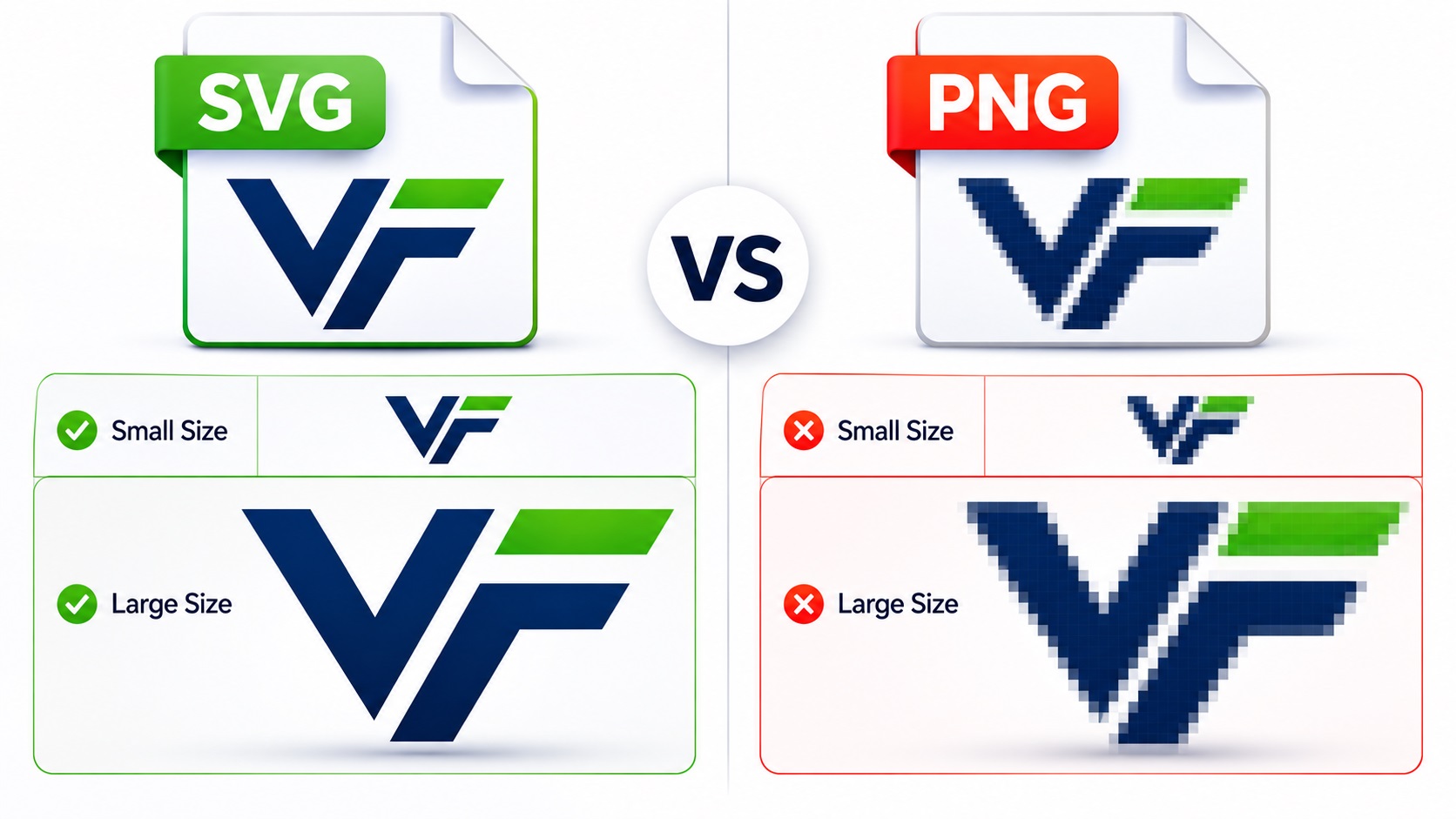
If you've ever downloaded your logo from a designer or website builder, you've probably ended up with a PNG file. It works fine most of the time. But the moment you try to use that logo for something bigger, like a sign, a shirt, or a large print, things can go wrong fast.
SVG files are different, and knowing when to use each format can save you a lot of trouble. Here's a plain-language breakdown of both.
What Is a PNG File?
PNG stands for Portable Network Graphics. It's a raster format, which means the image is stored as a grid of tiny colored squares (pixels). PNG files support transparency, which makes them popular for logos on websites where you need the background to be clear.
PNG files look good when used at the size they were created. A logo exported at 500 pixels wide will look fine on a webpage. Blow it up to banner size, though, and you'll see the pixels.
Common uses for PNG:
- Website logos and headers
- Social media profile pictures and posts
- Email signatures
- Documents and presentations
What Is an SVG File?
SVG stands for Scalable Vector Graphics. Unlike PNG, an SVG doesn't store pixel data. It stores a set of instructions that describe shapes, lines, and colors using math. When you open an SVG, your computer reads those instructions and draws the image fresh every time.
That's why an SVG logo looks just as sharp at 10 pixels as it does at 10 feet. There are no pixels to stretch. The shapes are redrawn at whatever size is needed.
Common uses for SVG:
- Large-format printing (banners, signs, vehicle wraps)
- Screen printing and embroidery artwork
- Websites where the logo needs to scale cleanly
- Cutting machines like Cricut and Silhouette
- App icons and UI elements
Key Differences Between SVG and PNG
Here's a simple comparison.
Image Quality at Large Sizes
PNG files lose quality when scaled up. SVG files don't.
If you only ever use your logo on websites and small digital documents, this doesn't matter much. If you need your logo on anything physical, especially anything bigger than a few inches, it matters a lot.
File Editing
You can't easily edit a PNG. You can open an SVG in Adobe Illustrator or Inkscape and change colors, move shapes, adjust text, or add and remove elements. This makes SVG files much more flexible for design work.
Transparency
Both formats support transparent backgrounds. This is one area where they're equal.
File Size
For simple logos, SVG files are often smaller than PNG. For very complex illustrations with lots of details, SVG can get large. PNG file size depends on the image dimensions and the number of pixels.
Browser and Software Support
PNG files work everywhere without question. SVG files work in all modern browsers and design programs, but older software sometimes has trouble with them.
Which Format Should You Use?
The short answer: use both, but for different things.
Use PNG when:
- You're uploading your logo to a website or social media platform
- You're adding it to a Word document, email, or presentation
- The platform doesn't support SVG files
- You just need a quick digital version for everyday use
Use SVG when:
- You're sending your logo to a print shop
- You need large-format printing (banners, signs, wraps)
- You're working with a screen printer or embroidery service
- You want to cut your design with a Cricut or vinyl cutter
- You want a version of your logo that can be edited
What If You Only Have a PNG?
This is extremely common. Most small businesses have a PNG of their logo and nothing else. It works fine until they need to go bigger.
If you only have a PNG, you'll need to have it converted to a vector format before you can use it for print, cutting, or embroidery. This process is called vector tracing or vectorization. A designer redraws your logo using vector paths so it can be scaled to any size.
You can't simply rename a PNG to an SVG or export it through an online converter and get a true vector file. The shapes need to be redrawn. Automatic converters exist, but they often produce messy results that still cause problems at the printer.
What About AI and EPS Files?
AI (Adobe Illustrator) and EPS files are also vector formats. They're commonly used in professional print workflows.
AI files are native to Adobe Illustrator and are editable in that program. EPS files are older but still widely used, especially by commercial printers and sign shops.
If a printer asks for an AI or EPS file, they're asking for a vector file. If your SVG was created from a true vector trace, it can usually be converted to these formats easily.
Frequently Asked Questions
Can I convert PNG to SVG myself?
There are online tools that do this automatically, but the results are often rough. For a clean, professional result, manual vector tracing by an experienced designer is the better option.
Will an SVG logo work on my website?
Yes. SVG is supported by all modern web browsers and works well on websites. Many developers actually prefer SVG for logos because it scales cleanly on high-resolution screens.
My designer gave me a PNG but said it's high resolution. Is that enough?
High resolution helps for small print jobs, but it still has limits. A 300 DPI PNG can look good on business cards and flyers. For large-format printing or cutting machines, you still need a vector file.
What if my logo has gradients or shadows?
Gradients can be tricky. Some print processes (like screen printing) can't use gradients at all. A good vector trace will handle this cleanly, but you may need to discuss your specific use case with your designer.
Need artwork converted?
VectorFixer can redraw logos, convert PNG files to SVG, and prepare clean production-ready vector files.
Contact Us