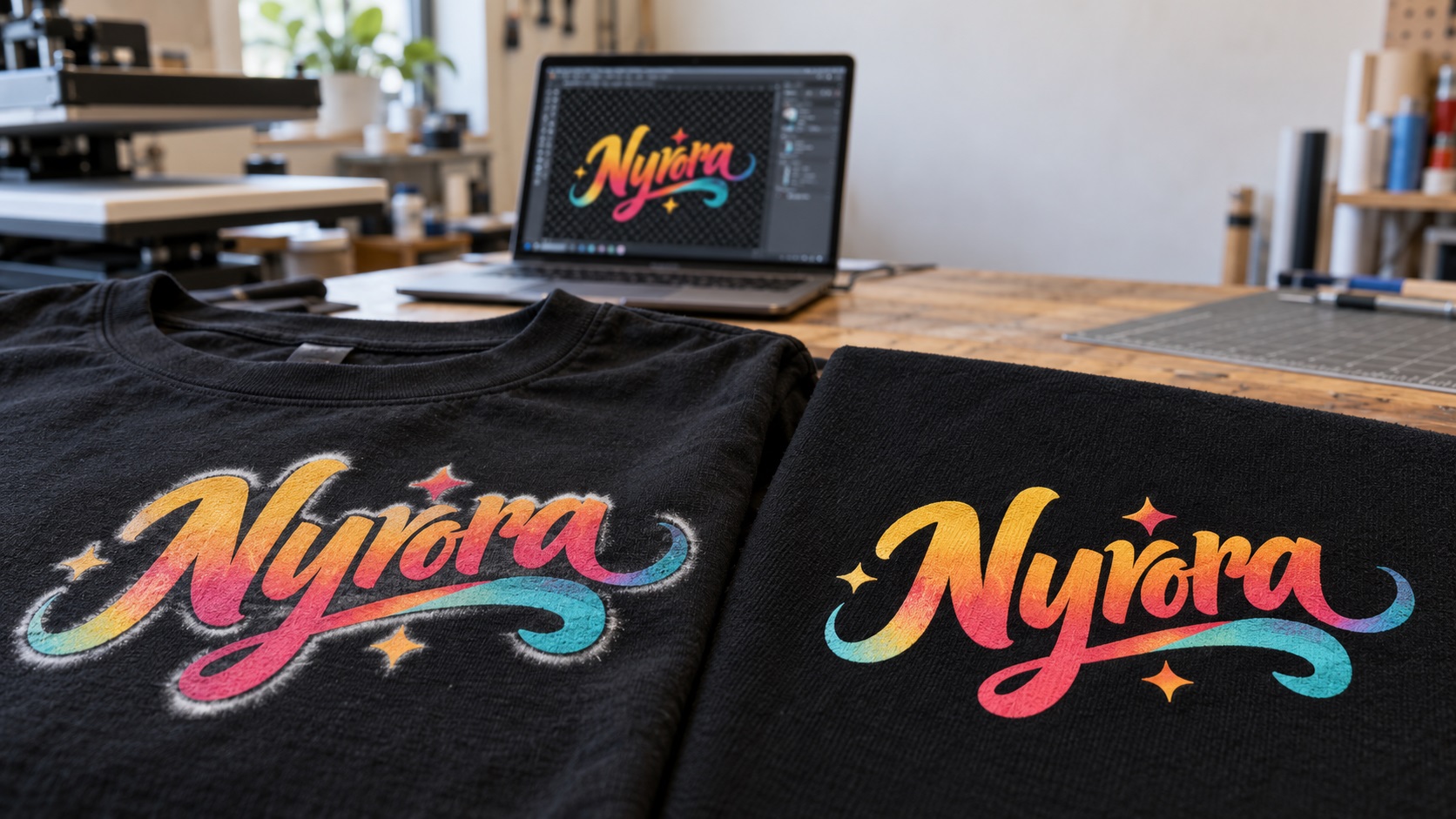
You approve a logo for black T-shirts. The file looks clean on your laptop. Then the first DTF transfer arrives with a thin white ring around the letters.
That ring is often called a white halo. It is frustrating because the white edge may not have been visible in your original design.
The cause could be the artwork, the print shop's white-ink setup, or the printing process. Finding out which one matters before you pay for another batch.
What causes the white outline on a DTF transfer?
DTF, or direct-to-film, prints a design onto transfer film so it can be applied to a garment with heat. On dark shirts, the printer usually lays down a white ink base beneath the colors. This helps the design remain bright against the fabric.
The white base should sit underneath the intended design, not extend visibly beyond its edges.
A white halo appears when unwanted light pixels or white ink can be seen around the artwork. There are several different reasons for that.
- The source image contains pale pixels left behind after background removal.
- The edges contain partly transparent pixels that the printer's software treats as printable.
- The white ink layer extends farther than the colored layer.
- The white and colored layers are slightly out of alignment.
- A soft shadow or glow is being printed differently than expected.
Not every white edge is a file problem, so do not immediately blame the logo or the printer.
First, tell the difference between a halo and a white box
A white box is a visible rectangle around the whole design. This often means the submitted image still has an opaque white background.
A white halo is usually a thinner ring that follows the letters or shapes.
A dusty fringe may look like tiny light specks around a logo. These can come from leftover image pixels, but physical transfer or adhesive issues can also contribute.
A one-sided white edge may point to alignment between the white and colored print layers rather than unwanted background pixels.
These differences help you ask the right question before anyone edits the artwork.
Why a transparent PNG can still cause a white halo
A PNG supports transparency. That does not mean every PNG has perfectly clean transparent edges.
Imagine removing the background from a JPG logo. The white background disappears, but some light gray and partly transparent pixels remain close to the letters. Against a white design canvas you may not notice them.
When the DTF software creates the white underbase, those faint edge pixels may be treated as part of the printable design. On a black hoodie, the extra light area becomes obvious.
The same issue can happen with a copied web logo, compressed screenshot, automatic background remover, blurred edge, or soft brush.
Simply seeing a checkerboard behind the design is not proof that every edge is clean.
How to check your logo before printing
You can catch many artwork problems without running a full transfer job.
1. Put the file on a black background
Open the exact file you sent the printer. Place a solid black layer underneath it.
Look at the lettering and outside edges at normal size, then zoom in.
Do you see gray dots, a pale fringe, or a faint rectangle? If yes, the submitted artwork may need cleanup.
2. Check the same file on white and colored backgrounds
A problem that disappears on white may stand out on navy, red, or black fabric.
Checking several backgrounds helps you see whether the issue is in the image rather than the display.
3. Inspect transparency, not just color
Where possible, inspect the alpha or transparency channel in your design software.
The important question is whether unwanted pixels are still present around the visible logo.
Do not remove intentional shadows or soft gradients without checking what the design is supposed to look like.
4. Compare the file with the printer's preview
Ask the print shop to show the artwork preview and, if available, the white-ink separation in its RIP software.
If the extra white shape is already in the artwork, file cleanup is the logical first step. If the artwork is clean but the generated white layer extends beyond the color, the shop needs to review its production settings.
What is the white underbase, and what does choke mean?
The white underbase is the white ink printed beneath the colored design.
Choke means pulling that white shape slightly inward so it stays hidden beneath the colored edges. Print shops can adjust this in compatible RIP software.
Choke can help when the white layer peeks beyond the color. But too much choke may leave small letters or thin lines without enough white beneath them, making those details look weak.
That is why you should not tell a shop to use one universal choke setting for every design.
The appropriate setting depends on the artwork, printer, ink, material, and workflow.
How to fix a logo with dirty transparent edges
For a simple logo, clean vector artwork is often the easiest long-term starting point.
A vector redraw can replace soft pixel edges with deliberate shapes and smooth curves. The shop can then export the appropriate transparent raster file at the finished print size.
If you already have good vector artwork, you may only need the correct export rather than a full redraw.
If your PNG came from an old JPG or screenshot, start by checking whether a cleaner original exists. Recovering a true source file can be better than repeatedly removing the background from an already damaged image.
If the file contains stray pixels, overlapping paths, rough traces, or uneven curves, VectorFixer's vector cleanup service is designed for that sort of artwork problem.
For a blurry or flattened logo, logo vectorization may be the better route.
Should you remove every semi-transparent pixel?
Not automatically.
A solid wordmark or flat-color logo usually benefits from a clearly defined edge. But a watercolor graphic, smoke effect, shadow, or photographic image may rely on soft transitions.
Forcing every partly transparent pixel to become fully opaque or fully transparent can make the artwork jagged and change the design.
Ask the shop how it handles soft transparency. Some effects are better converted to halftones, adjusted for the garment color, or prepared with a different transfer method.
The goal is an intentional edge, not blindly deleting every soft pixel.
Why changing DPI will not fix the halo
A file can say 300 DPI and still contain unwanted pixels.
DPI describes how image pixels map to printed size. It does not clean background residue, correct white-ink alignment, or rebuild a blurry logo.
Likewise, saving a JPG as PNG does not automatically remove its original background.
If the logo is too small or damaged, improve the actual source artwork first. Then export it in the format and final dimensions the DTF supplier requires.
What if the art looks clean but the print still has a halo?
That is the point to investigate production.
Send the shop the exact artwork file and ask it to check:
- The generated white-ink layer.
- Choke settings.
- Alignment of the white and color layers.
- Whether the design was resized or processed differently during import.
- The actual transfer and pressing results.
The shop may need to run a short test using the same file.
If the white edge is consistently offset on one side, cleaning the PNG alone may not solve it.
A clear description such as “the white outline is visible only on the right side of each letter” is more helpful than “the logo prints badly.”
What files should you send for DTF printing?
Different DTF suppliers accept different formats.
Many request a high-resolution PNG with a transparent background at the final print size. Others can accept vector artwork or may prefer to prepare the final print file themselves.
A useful logo package includes a clean SVG, AI, EPS, or vector PDF master, plus a properly exported transparent PNG.
The vector master is valuable because you can resize the logo and rebuild the print export without repeatedly enlarging a small web image.
Always use the supplier's current file specifications for the actual order.
A quick checklist before ordering DTF transfers
- Check the logo on black, white, and colored backgrounds.
- Remove unintended background pixels.
- Confirm the entire background is truly transparent if it should not print.
- Keep intentional shadows or fades only if the shop can reproduce them.
- Export the artwork at the correct finished dimensions.
- Ask whether the shop supplies the white underbase automatically.
- Request a proof or test transfer before a large garment run.
- Keep a clean source file for future orders.
Frequently asked questions
Why is there a white line around my DTF logo on black shirts?
Common causes include leftover light pixels, partly transparent edges, or a white underbase that reaches beyond the colored design. Compare the original file with the RIP preview to identify the source.
Is a transparent PNG enough for DTF?
A good transparent PNG is accepted by many suppliers. It still needs clean edges, sufficient resolution, correct physical sizing, and any other settings the shop requests.
Can a vector file fix a DTF halo?
A clean vector redraw can fix damaged or dirty logo geometry and produce a better transparent export. It will not correct a printer's white-layer alignment problem.
Can I just tell the printer to remove the white underbase?
That is usually not a good fix for dark garments. Without the necessary white backing, colored inks may appear dull. Ask the shop to adjust the white separation rather than simply removing it.
Do I need to pay for a complete logo redesign?
Usually not. If the existing design is correct, you may only need cleanup, a vector redraw, or a better export.
Get the logo file right before another print run
A white halo can come from the source file or the production setup. Checking both is less expensive than guessing and reordering.
If your logo came from a screenshot, JPG, old PNG, or messy auto-traced SVG, send your artwork to VectorFix for a low-pressure review of what needs cleaning or rebuilding.
Need artwork converted?
VectorFixer can redraw logos, convert PNG files to SVG, and prepare clean production-ready vector files.
Contact Us