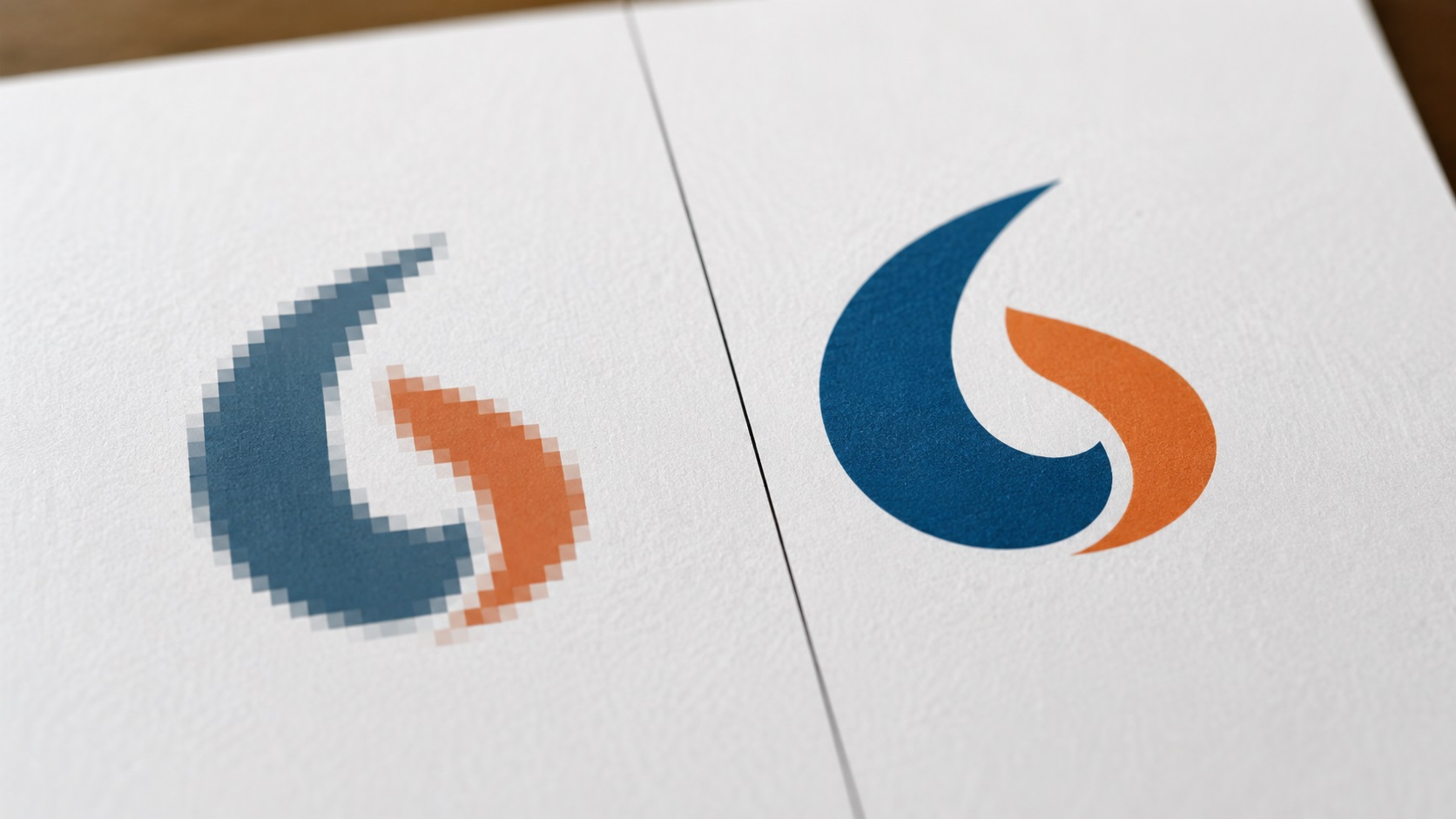
Your logo looks great on your phone screen. It looks fine on your website. But when the printer delivers your banners or flyers, the logo is blurry, soft, or pixelated.
This is not a printer problem. It is a file problem. And it happens to almost every business at some point.
Here is why it happens and what you can do about it.
Screens and Printers Are Very Different
A computer screen shows images at around 72 to 96 dots per inch. That means for every inch of screen space, there are roughly 72 to 96 tiny coloured points of light making up the picture.
A printer works at a much higher level of detail. For good print quality, you need at least 300 dots per inch. For large format printing, such as banners and signs, the requirement is sometimes lower because you view those prints from further away, but the image still needs to be large enough in total size.
An image that looks perfectly fine on a screen at 72 dots per inch does not have nearly enough information to print well at 300 dots per inch. When the printer tries to fill in the missing detail, the result is a blurry, soft, or blocky image.
Why Your Logo File Is the Problem
Most logos that business owners have saved on their computers come from one of a few places:
- Someone emailed it years ago and you saved the attachment
- You downloaded it from your own website
- A designer sent you a small preview file along with the final design and you kept the preview
- You had a logo made on a cheap online service that delivered a small image file
In most of these cases, the file you have is sized for screen use. It looks fine on a monitor because monitors do not need much detail. But that same file does not have enough information for printing at a large size.
When you try to print it at A3 size, poster size, or banner size, the software has to stretch the image to fill the space. Stretching an image that does not have enough pixels just makes each pixel bigger and more visible. That is where the blurriness and blockiness come from.
The Two Types of Logo Files
To understand the real fix, you need to know the difference between two types of image files.
Pixel-based files
JPG, PNG, GIF, and BMP are all pixel-based formats. They store images as a grid of tiny coloured squares. Each file has a fixed number of squares. Once that number is set, it cannot be increased without losing quality.
Think of it like a mosaic made of tiles. If you want to make the mosaic bigger, you either have to add more tiles (which you cannot do if they do not exist) or make the existing tiles bigger. Making the tiles bigger makes the individual squares more visible. That is exactly what happens when you stretch a logo.
Vector files
SVG, EPS, AI, and PDF are vector formats. They do not store images as grids of squares. Instead, they store shapes as a set of instructions.
A circle in a vector file is stored as a description: a circle at this location, this size, this colour. When you print it larger, the software just follows the instructions at the new size. The result is always sharp and clean.
Vector files have no size limit. A vector logo that was originally made at thumbnail size prints perfectly on a 10-metre banner.
What You Can and Cannot Fix in an Editing App
A lot of people try to fix a blurry logo by opening it in an app and increasing the size or the resolution. This does not work.
When you increase the size of a pixel-based image in an editing app, the software adds new pixels by guessing what colour they should be based on the surrounding pixels. This is called resampling, and it does not add real detail. It just makes the file larger without making it sharper.
You may have heard the term "enhancing" a photo. Real-world software cannot do what you see in films. If the detail was not in the original file, no software can put it there.
The only real fix is to either:
- Find the original high-resolution version of the logo file, or
- Have the logo converted to a vector format
How to Fix a Blurry Logo Permanently
The best solution for most businesses is converting the logo to a vector file. This means a designer redraws the logo from scratch using vector drawing tools, creating clean shapes and paths that can be scaled to any size.
The source file (your existing JPG or PNG) is used as a guide. The designer matches the shapes, colours, and layout of your logo as closely as possible. The end result is a vector file that looks identical to your original logo but can be used at any size without ever losing quality.
Once you have a vector version of your logo, you will never deal with a blurry print job again. The file works for banners, billboards, embroidery, vehicle wraps, screen printing, and everything else.
How to Check if Your Logo File Is Good Enough
Here is a simple way to check before you send a file to a printer.
Open the image on your computer and zoom in to about 200 or 300 percent. Look at the edges of the logo shapes and any text in the logo.
If the edges are sharp and clear at that zoom level, the file may be good enough for smaller print jobs.
If the edges look fuzzy, soft, or you can see individual coloured squares, the file is low resolution and will print poorly at any size beyond small.
If the file is an SVG, EPS, or AI file, it is a vector file and will print sharply at any size.
Frequently Asked Questions
Why does my logo look fine on screen but bad in print? Screens display images at low detail levels (around 72 dots per inch) and your eye fills in the rest. Printers work at much higher levels of detail. A file that looks sharp on screen often does not have enough information for print.
Can a print shop fix my blurry logo? No. Print shops print what they are given. They cannot add detail that does not exist in your file. Some will let you know that the quality may be poor; others will print it anyway. Either way, the fix has to happen before the file reaches them.
What is the minimum file size for a good print? For standard print, your image needs to be at least 300 dots per inch at the size you are printing. For a logo on an A4 flyer, that means at least 2480 x 3508 pixels. For a banner, the requirements depend on viewing distance. A vector file removes this concern entirely.
How much does it cost to convert a logo to vector? It varies by the complexity of the logo. Simple logos are at the lower end of the price range. At VectorFix, pricing is based on how complex the artwork is. You can upload your file and get a quote before committing.
Fix Your Logo Before Your Next Print Job
If your logo has been blurry in print, the file is the issue. Converting it to a vector format is a one-time fix that works for every print job from that point on.
Upload your logo to VectorFix and we will convert it to a clean vector file ready for printing at any size.
Need artwork converted?
VectorFixer can redraw logos, convert PNG files to SVG, and prepare clean production-ready vector files.
Contact Us