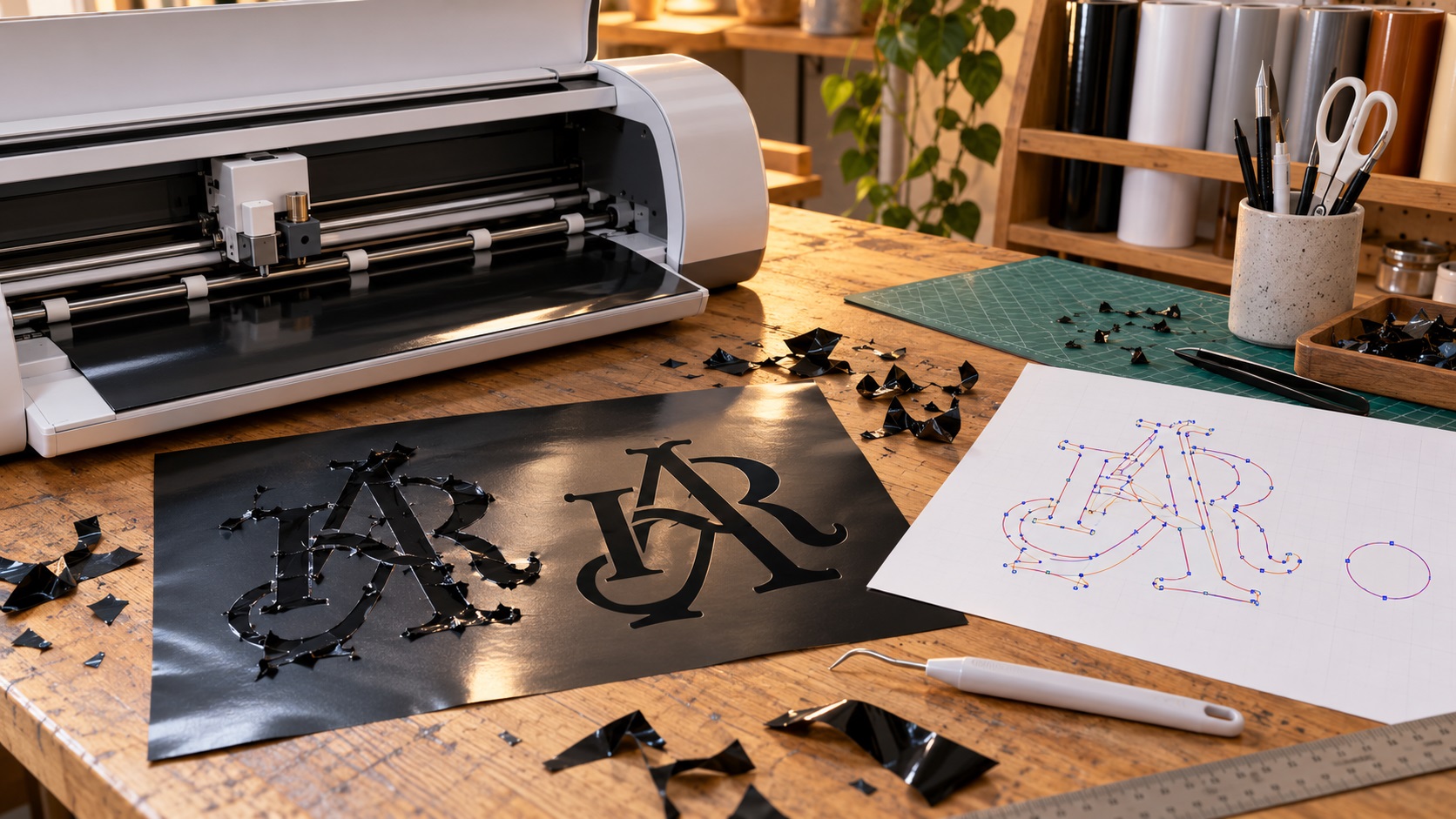
You download an SVG logo, open it in Cricut Design Space or Silhouette Studio, and everything looks normal at first. Then the software shows extra cut lines, fills the holes in letters, splits one design into dozens of pieces, or refuses to import the file.
It is easy to assume the cutting machine is broken. Often, the real problem is how the SVG was built.
A file can be genuine vector artwork and still be unsuitable for cutting vinyl, heat-transfer material, stencil film, or decals. The blade follows shapes and paths, not the finished picture you see on your screen.
Here is how to recognize the most common SVG cut-file problems before wasting material.
Why does an SVG look right but cut incorrectly?
An SVG can contain visible shapes, hidden objects, strokes, masks, text, effects, and overlapping paths.
When displayed on a website or design canvas, these parts are combined into an image that looks right. Cutting software has to interpret them as instructions for the blade.
That is where issues appear.
A shape that looks like one solid letter may actually contain several overlapping pieces. A smooth thick line may be only a visual stroke. A white area inside the letter O may be a separate white shape rather than a genuine hole.
These distinctions matter when the file is sent to a cutter.
Problem 1: The cutter follows every overlapping shape
Imagine a logo made from two rectangles and a circle. They overlap to look like one icon.
On screen, the edges disappear into the same color. But if those pieces have not been combined properly, the cutter may follow each original outline. You end up with unwanted lines through the finished design.
This is especially common when vector files are built from multiple stock shapes or automatically traced from images.
For a one-color vinyl design, overlapping pieces that should behave as one solid shape often need to be combined or welded.
Do not automatically merge every layer of a multicolor logo, though. Separate vinyl colors may need separate cut pieces.
Problem 2: Holes in letters become solid shapes
The empty centers of letters such as O, A, B, D, and P need to remain open.
Sometimes the artwork only looks correct because a white shape is placed over a colored one.
That white shape is not necessarily an actual hole. Depending on the import workflow, the cutting software may cut it as a separate object or fill the opening unexpectedly.
A compound path can define an outer shape and its intentional holes.
For simple cut-ready lettering, check that the empty areas are built into the actual geometry rather than faked with an overlaid background-colored object.
If the design imports as a solid blob, inspect those holes first.
Problem 3: The SVG contains a clipping mask
A clipping mask hides the unwanted part of an object without necessarily deleting the underlying shapes.
That works in illustration software, but not every cutting app can interpret it correctly.
Cricut's own upload guidance identifies clipping paths as unsupported in its SVG/DXF upload workflow. It recommends converting suitable simple shapes into actual geometry or using an appropriate raster Print Then Cut workflow for more complex images.
If your SVG uses masks to hide extra artwork, the safest approach for basic vinyl cutting is to rebuild the intended visible shape as clean paths.
Do not simply remove a mask without inspecting the object underneath it. You could expose hidden pieces that are then cut.
Problem 4: Text is still editable text
Live text depends on a font.
If another program does not handle that font the same way, the letters may shift, change, or fail to import.
For a final cut file, important logo lettering is commonly converted to outlines or curves. Each letter then becomes vector geometry rather than an instruction to display a particular font.
Keep a separate editable master before outlining it. Once text becomes shapes, correcting a spelling error is less convenient.
If you need more detail on that step, see why printers request outlined fonts in VectorFixer's printing guides.
Problem 5: A thick line is only a stroke
Strokes and filled shapes are not always equivalent for cutting.
Suppose your logo contains a script word drawn with a thick black stroke. On screen it looks like bold lettering.
The cutter may interpret the original line path rather than the full visible thickness, or your software may create an unexpected double cut.
For designs that must cut as solid material, the final file may need the visible stroke converted into actual filled geometry.
The exact operation depends on the software. Adobe Illustrator, Inkscape, and other vector editors have tools for expanding strokes and combining paths.
Check the result in outline or wireframe view before exporting.
Problem 6: Auto tracing created too many points
Automatic tracing can generate hundreds or thousands of points around what should be a smooth curve.
On screen, a dense path may look acceptable at normal zoom. Under a cutting blade, it can create rough edges, slow movement, unnecessary turns, and tiny shapes that are almost impossible to weed.
A clean logo does not need a new anchor point at every pixel.
The practical fix is to remove unwanted specks, simplify curves, and redraw damaged shapes where necessary.
Cricut's upload help also documents a file-too-large error for vector images with more than 5,000 paths. That is a software limit on path complexity, not a reason to guess whether the file is clean based on its kilobyte size.
VectorFixer's vector cleanup service specifically addresses rough edges, unnecessary nodes, and problematic paths.
Problem 7: The design contains tiny disconnected pieces
Some logos include a spray texture, stars, distressed marks, dots, or decorative fragments.
These can be valid vector elements, but a cutting machine may treat every piece as a separate object.
Think about the physical task of removing unwanted vinyl after the machine cuts. A hundred tiny dots may be difficult to weed even if the machine cuts every one of them correctly.
Ask yourself whether the smallest details are needed at the final size.
A production copy might remove decorative specks while preserving the main logo.
Problem 8: The file has open or duplicate paths
An open path has ends that do not join. It can cause an unexpected cut route, especially when a shape is supposed to be enclosed.
Duplicate paths are another issue. Two identical outlines on top of each other may make the machine cut the same edge twice.
That extra cutting can tear fine material or make weeding more difficult.
Use outline or wireframe view to look for loose ends, extra lines, duplicated objects, and paths far outside the visible artwork.
A tidy file should contain only the cut geometry the job actually needs.
Problem 9: The design imports at the wrong size
An SVG can contain different dimensions, scaling information, and an internal viewBox.
Most modern software handles these sensibly, but imports can still surprise you, especially when artwork moves between programs.
A logo that should be 5 inches wide may arrive much smaller or larger than expected.
Always check the finished physical width and height after import, not just the percentage shown on screen.
This matters for small lettering, narrow strokes, and tight gaps because those details become harder to weed as the size decreases.
Is a print-and-cut file the same as a vinyl cut file?
No.
A simple vinyl cut file usually tells the cutter which shapes to cut from colored material.
A print-and-cut job includes printed artwork plus a cutting contour around it.
For some commercial printers, the cut contour must be a separate vector path with a specially named spot color. Roland VersaWorks, for example, recognizes vector cutting paths assigned the exact spot color name CutContour.
That does not mean every Cricut or Silhouette project needs the Roland naming convention. Different machines and software have different requirements.
Follow the instructions for the actual equipment you are using.
How to inspect an SVG before sending it to a cutter
If you have access to vector editing software, this is a useful sequence:
- Save a copy of the original SVG.
- Open the file in Illustrator, Inkscape, or another suitable vector editor.
- Switch to outline or wireframe view.
- Look for hidden objects, overlapping paths, and stray points.
- Check that letter counters and intentional holes are real openings.
- Convert live text to paths in the production copy if your cutter requires it.
- Convert visual strokes into shapes when necessary.
- Remove or rebuild unsupported clipping masks.
- Simplify messy traced curves without destroying the logo.
- Export the final cut file and check it inside the target cutting software.
Then preview the actual cut lines and run a small test on scrap material.
A file that looks clean in a vector editor still needs a test in the software and material you will actually use.
What if you only have a PNG or JPG?
A PNG or JPG may be suitable for a Print Then Cut workflow, but it is not automatically a ready-made layered vector cut file.
If you need clean vinyl shapes or reusable vector artwork, a raster logo can be manually redrawn into proper paths.
Saving an image with an SVG extension or placing it inside an SVG document does not create clean blade-ready geometry.
For an old screenshot or low-resolution logo, manual logo vectorization can give you a cleaner master that is easier to adapt to cutting.
How to describe the problem to someone fixing your SVG
You do not need to know every technical term.
Send the file and state:
- Which machine and software you are using.
- What material you want to cut.
- The intended finished dimensions.
- Whether it is a single-color or layered design.
- Which parts should be solid and which should remain holes.
- What happens on upload or in the cut preview.
- A screenshot of the error or bad preview, if available.
This helps distinguish a damaged file from a mismatch between the file and software.
Frequently asked questions
Why does my SVG show extra lines in Cricut Design Space?
It may contain overlapping shapes, strokes, hidden objects, or duplicated paths. Inspect the actual geometry before trying another export.
Why are the holes inside letters filled?
The openings may not have been created as compound paths or real cutout geometry. A background-colored shape placed over a letter is not always an actual hole.
Will converting my SVG to PNG solve the problem?
It may be useful for a raster Print Then Cut project, but it will not preserve a true layered vector cut file. Use the format required for the job.
Does every SVG need manual cleanup?
No. A well-built SVG that imports and cuts correctly may need no changes at all. Cleanup is useful when there are structural problems, not simply because the file is an SVG.
Can an automatic vectorizer create a cut-ready logo?
Sometimes, especially for simple, high-contrast artwork. But automatic tracing can also create too many points and small fragments. Check the paths and test the cut before producing a large run.
Make the cutting file match the job
The useful distinction is between an SVG that displays correctly and an SVG that cuts correctly. A clean cut file has geometry the machine can follow without guessing.
If your logo arrives with extra cut lines, rough curves, filled-in letters, or dozens of unwanted pieces, send the SVG to VectorFix and include your cutter's instructions. The existing artwork may only need structural cleanup rather than a new design.
Need artwork converted?
VectorFixer can redraw logos, convert PNG files to SVG, and prepare clean production-ready vector files.
Contact Us