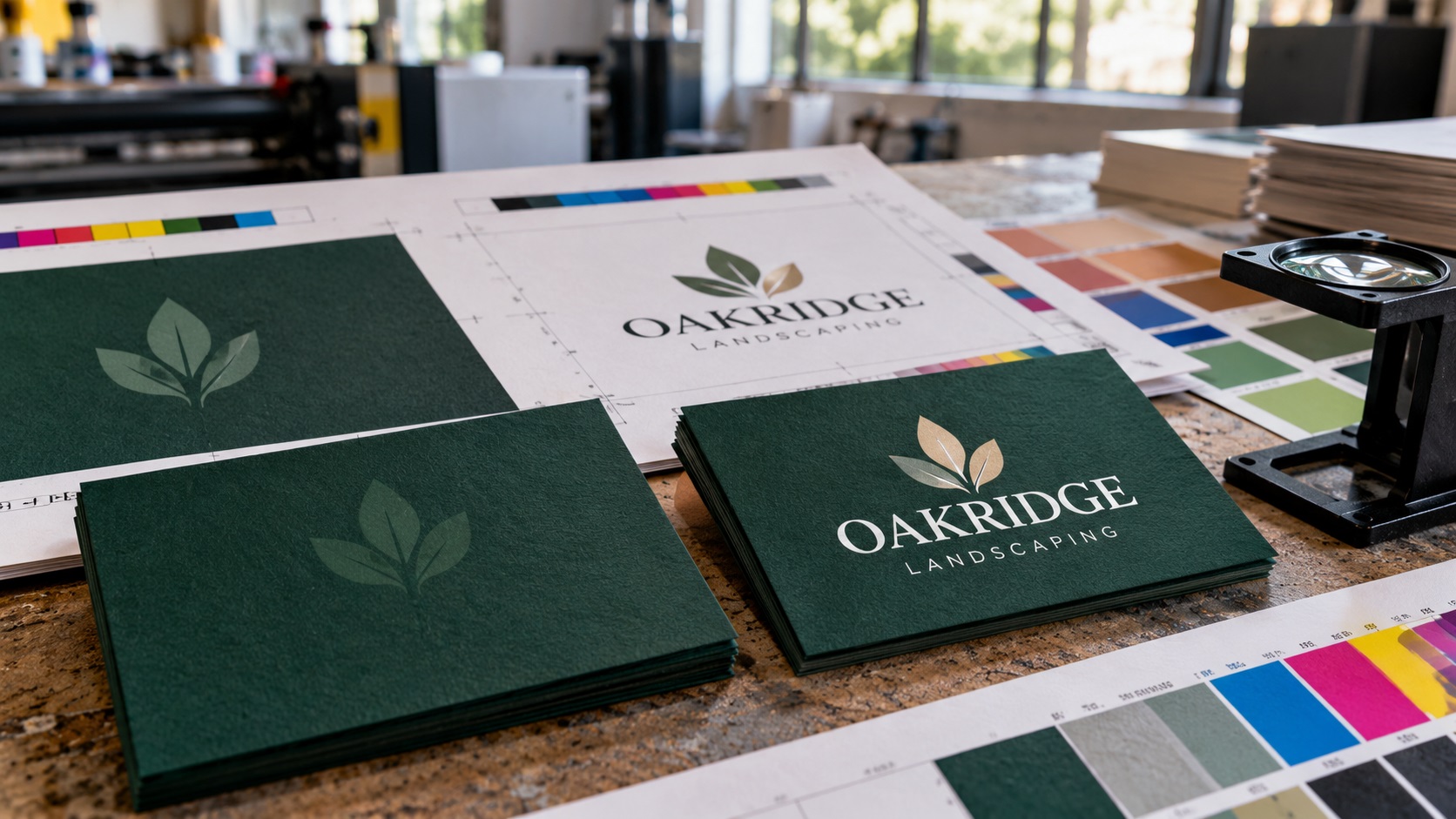
A print shop opens your artwork and says the white logo may disappear when the job is printed. You check the file on your computer. The logo is plainly visible. The printer is still concerned.
Both observations can be true.
In some Illustrator and PDF workflows, white lettering or a white logo can be set to overprint instead of knock out the color underneath. The artwork can look correct in a normal design view but behave differently when its colors are separated for output.
The good news is that this is usually a file-setup issue rather than a reason to redesign your logo.
Here's what to inspect before you send the next PDF.
What does it mean when a white logo disappears in print?
Imagine a navy brochure with a white business name across the front.
On your screen, the white lettering sits visibly on top of the navy rectangle. You expect the print press to leave the shape of the lettering unprinted so that the white paper shows through.
That normal behavior is called a knockout.
If the same white lettering is accidentally set to overprint, it may no longer knock out the navy ink. On an ordinary process-color job printed on white paper, the white lettering can effectively disappear because no white process ink is being laid down to replace the navy.
This is a specific prepress problem, not evidence that the PDF has low resolution or that the logo was traced badly.
However, some missing-white-logo problems have other causes. Checking the output rather than guessing matters.
Overprint versus knockout in plain English
Knockout means the upper object makes a space in the inks underneath it.
Overprint means the upper object's ink is intended to print over the lower object's ink without removing it.
For ordinary process-white logo lettering on dark paper graphics, a knockout is usually what you expect. The paper provides the white.
Overprinting is not automatically a mistake. Printers intentionally use it in certain jobs to manage registration or ink interaction, including some black-ink and spot-color applications.
The problem is unintended overprinting of a white object that should remain visible.
Before changing anything, ask whether your job uses ordinary CMYK printing, a genuine spot-white ink, or a specialty printing process. Those are not the same situation.
Why Illustrator can show a white logo that will not print correctly
Design applications have normal artwork previews intended for editing.
Those views do not always simulate how ink plates overlap.
Adobe documents the white-overprint issue in Illustrator and explains that it can arise when an object inherits an overprint setting from another object or retains that setting after its color is changed to white.
For example:
- You select a shape that already has Overprint Fill enabled.
- You create or recolor another object.
- The new white object carries the unwanted overprint attribute.
- In an ordinary view, the logo still looks white.
- In an output simulation, the lettering no longer knocks out the background.
That is why you should inspect attributes and preview separations, not rely on the visual appearance of the design canvas alone.
How to check the white logo in Adobe Illustrator
Start with the source Illustrator file if it is available.
1. Save a duplicate of the file
Do not modify the only copy of your logo or print layout.
Make a working copy so you can compare the original and corrected output.
2. Turn on Overprint Preview
In Illustrator, choose View > Overprint Preview.
This provides an approximation of how overprinting affects the artwork.
If white text or part of a logo disappears only after you enable the preview, that is a strong reason to inspect its overprint attributes.
The result still needs confirmation in the final PDF and with the actual print provider.
3. Open the Attributes panel
Choose Window > Attributes.
Select the white logo object or the individual paths inside its group.
Look for Overprint Fill and Overprint Stroke.
If either is enabled on a process-white object that is supposed to knock out the background, that may be the source of the problem.
A grouped logo can contain several objects with different settings. Inspect the relevant paths rather than assuming the entire group has one attribute.
4. Check the actual color swatch
White can mean different things in print production.
Ordinary CMYK process white is typically represented by zero ink in all four process channels.
A specially defined spot-white ink may be a separate printing plate with its own intended overprint behavior.
Do not remove attributes from spot-white artwork without first reviewing the printer's instructions.
5. Export a new test PDF
After correcting confirmed mistakes, generate the PDF using the vendor's requested export preset and format.
Do not assume the source artwork and PDF will behave identically. Reopen the exported PDF and test that exact file.
What if Illustrator already fixes white overprint automatically?
Adobe has a feature called Discard White Overprint.
When enabled, it can remove unintended overprint attributes from process-white objects during certain output operations, such as printing or saving EPS/PDF artwork. It does not necessarily change the original Illustrator objects.
Adobe also distinguishes process white from spot white. The automatic discard behavior does not apply to objects using a specially defined spot-white ink.
This is important for two reasons.
First, the PDF might be correct even when the source Illustrator file still contains a questionable attribute.
Second, you should not rely on automatic correction for a specialty white-ink job.
The safest approach is to check both the working document and the final production file.
How to inspect the exported PDF in Acrobat Pro
If you have Adobe Acrobat Pro, use its print-production tools.
Adobe's current guidance describes the following route:
- Open the exact PDF you will send to the printer.
- Choose All tools > Use print production.
- Open Output preview.
- Enable Simulate Overprinting.
- Review the relevant ink separations and how the logo behaves over the background.
You can also use the color warnings in Output Preview to look for overprinting areas.
If the white lettering vanishes under the simulated printing conditions, do not approve the file without understanding why.
Acrobat's preview is a simulation. The printer's RIP, inks, paper, and output settings ultimately determine the production result.
What do the color separations tell you?
Commercial printing separates artwork into ink channels, often cyan, magenta, yellow, and black, and sometimes additional spot colors.
For a dark CMYK block with knocked-out white text, the intended white letters are areas where the underlying process inks are absent.
If the background inks continue across those letters, the apparent white logo may not exist as a printable knockout in the separations.
That is why the ink-plate view can reveal problems that are invisible in a normal on-screen PDF preview.
Ask the printer to inspect the separations if you do not have Acrobat Pro or are uncertain how to interpret them.
Process white and spot white are not interchangeable
This is the distinction that prevents well-intentioned fixes from creating new problems.
Process-white logo on white paper
In ordinary CMYK printing, white is generally the color of the paper where no ink is applied.
White letters over a dark design usually need the surrounding inks to knock out.
Spot-white ink on transparent or dark material
For clear labels, metallic stock, dark packaging, and some UV printing workflows, the supplier may print an actual white ink.
That ink typically uses a named spot color or separate white channel according to the shop's workflow.
Some of those jobs require intentional overprint behavior for white ink beneath other colors.
There is no universal correct spot-white swatch name or overprint setting across every printer.
Ask the vendor for its current file setup instructions before modifying these layers.
Can a white logo disappear for other reasons?
Yes. Overprint is one explanation, not the only explanation.
Other possibilities include:
- The logo is on a nonprinting or hidden layer.
- An object or clipping mask hides it in the exported PDF.
- The PDF contains a transparency or flattening problem.
- The logo is white on a transparent background and a viewer displays it on white.
- The layout uses the wrong color mode or ink-channel setup.
- A placed image or export process removed the logo.
- The printer is handling a spot-white layer differently from the design preview.
A useful diagnosis starts by asking: Does the logo disappear in Overprint Preview, in the final PDF, or only on the physical print?
That answer narrows the next step.
Do you need to convert the logo into vectors to fix this?
Not necessarily.
If the white lettering is already clean vector artwork, changing a confirmed incorrect overprint attribute may solve the issue without redrawing anything.
A redraw is more relevant when the logo comes from a blurry JPG, screenshot, flattened PNG, or messy auto-traced file.
In those cases, clean vector source artwork can make it easier to inspect separate shapes, colors, and print attributes.
If the source needs rebuilding, VectorFixer's logo vectorization service focuses on manually recreating lettering and shapes into usable vector formats.
If the source is already vector but full of unwanted objects or rough paths, vector cleanup may be the better starting point.
The right solution depends on the cause, not just the extension.
A practical example: white text on a dark business card
Suppose your business card has a deep green background with a white wordmark.
The printer flags the white lettering in the supplied PDF.
A sensible process would be:
- Confirm the cards are printed on white stock using ordinary process inks.
- Open the vector source file.
- Turn on Overprint Preview.
- Check whether any white paths carry Overprint Fill or Overprint Stroke.
- Remove unintended process-white overprint settings.
- Export a new vendor-approved PDF.
- Inspect that exported PDF in Acrobat Pro Output Preview.
- Ask the printer to review it before running the batch.
This is more reliable than enlarging the logo, increasing its DPI, or exporting the same file again without changing the underlying setting.
Why converting the PDF to JPG is a poor universal fix
A raster export can change how the image appears, and a printer may accept a high-resolution raster file for certain jobs.
But converting a complex production PDF to JPG is not a general solution to overprint problems.
It may remove editable text, spot-color channels, transparent areas, and genuine vector geometry. It can also introduce compression artifacts.
If the printer specifically requests a flattened raster file, follow that production specification.
Otherwise, correct the underlying print setup and preserve the vector source.
What should you send the printer after fixing the problem?
Prepare a straightforward package:
- The revised production PDF in the requested preset.
- A clearly identified version number or date.
- An optional vector source file if requested.
- A screen reference showing the intended white logo.
- A note explaining the issue that was checked.
- Confirmation of whether the job uses normal CMYK or a spot-white ink.
- Any special color or finishing instructions.
You do not need to write a long technical explanation. A short note such as "Please check that the white wordmark knocks out the green background in the separations" can help the printer verify the specific concern.
Prevent the same issue in future logo projects
Keep a clean editable logo master with separate light and dark versions.
Avoid building production artwork from flattened screenshots when you can preserve vector objects.
When handing files to a commercial printer, check the exact exported PDF rather than only the open design file.
For packaging, clear materials, white ink, and specialty finishes, get the vendor's spot-color naming and layer instructions before export.
A little separation checking can avoid discovering the mistake after the full order is printed.
Frequently asked questions
Why does my white Illustrator logo disappear in Overprint Preview?
An unintended overprint attribute may prevent its shapes from knocking out the background. Check the individual white objects in the Attributes panel and confirm whether they use process white or spot-white ink.
How do I turn off Overprint Fill in Illustrator?
Select the relevant object, open Window > Attributes, and clear Overprint Fill if it was enabled incorrectly. Review strokes and other paths too.
Does Illustrator automatically fix white overprint?
Adobe provides a Discard White Overprint option for certain process-white output situations. The source file may still retain its attributes, and spot-white objects are treated differently.
Can I check overprint in a PDF without Illustrator?
Acrobat Pro has an Output Preview tool that can simulate overprinting and display ink separations. A printer can also inspect the production PDF.
Is a white logo on black packaging supposed to overprint?
It depends on the process. Ordinary white paper knocked out of CMYK is different from white ink printed on dark or transparent material. Follow the packaging printer's specific spot-white instructions.
Will a new SVG fix a white logo that is set to overprint?
Changing the file format alone does not reliably correct the intended production behavior. First diagnose and fix the print attributes or ask the vendor to prepare them.
Fix the file before approving the print run
A white logo that looks normal on screen can still behave unexpectedly in prepress. Start with Overprint Preview, inspect the actual PDF separations, and confirm whether you are dealing with process white or a genuine spot-white plate.
If your logo also needs sharper vector paths or cleaner separated artwork, send it to VectorFixer with the printer's requirements. The goal is a source file the print shop can inspect and use, not another guess at export settings.
Further reading
- Adobe: White overprint in Illustrator
- Adobe: Set up and manage overprinting
- Adobe: Preview overprint in Acrobat Pro
Need artwork converted?
VectorFixer can redraw logos, convert PNG files to SVG, and prepare clean production-ready vector files.
Contact Us