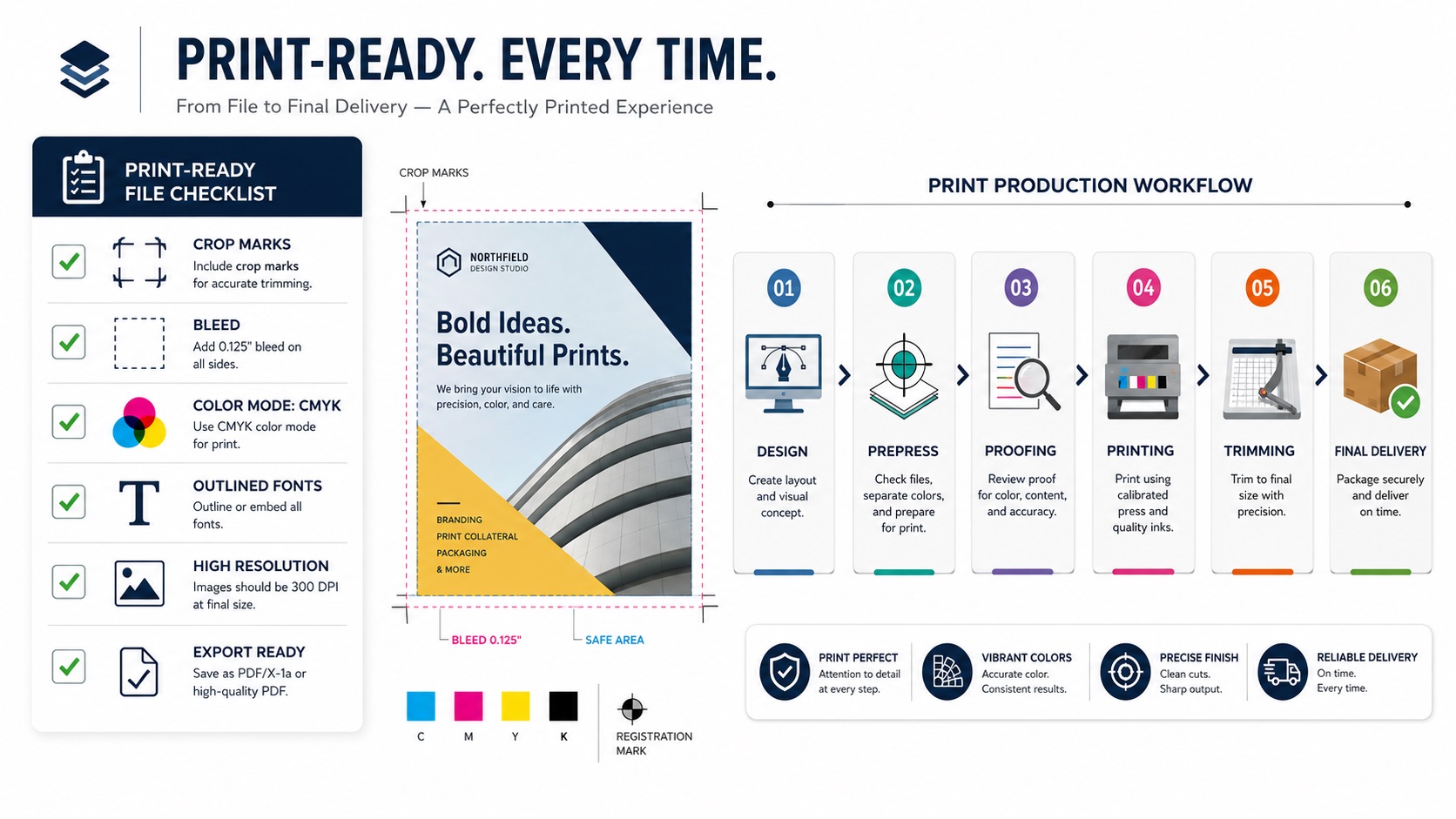
You submit your artwork to a printer, a sign shop, or a packaging supplier and they come back asking for a print-ready file. If you are not sure what that means, you are not alone. It is one of those terms that gets thrown around constantly in the print industry but rarely gets explained in plain language.
Quick Answer
When a printer says your logo or artwork is not print-ready, they usually mean the file cannot go straight into production. Common problems include a low-resolution PNG, missing bleed, RGB colors when CMYK is required, unoutlined fonts, no vector logo, or artwork supplied in the wrong format.
Relevant VectorFixer service: Print-Ready Vector Artwork.
Here is exactly what print-ready means, what makes a file print-ready, and why it matters.
The Basic Idea Behind Print Ready
A print-ready file is a file that can go directly into production without the printer needing to fix anything first. No missing fonts, no wrong color mode, no low-resolution images, no missing bleed, no stray objects. The printer can open it, confirm it looks right, and send it to press.
This matters because print production is a technical process with very specific requirements. When a file does not meet those requirements, one of a few things happens. The printer contacts you to fix it, which delays the job. They fix it themselves and charge you for the time. Or they print it as is and the result does not look right.
A print-ready file skips all of that and gets your job done faster, more accurately, and often more cheaply.
What Makes a File Print Ready
There is no single universal standard for print-ready files since requirements vary by print method, vendor, and product. But there are core requirements that apply to almost every professional print job.
Correct Color Mode
Print production uses CMYK color, not RGB. Screens display in RGB, which covers a wider range of colors than CMYK can reproduce. If you send an RGB file to a printer, they have to convert it, and some colors can shift in ways that surprise you.
A print-ready file is built in CMYK from the start, with all colors defined in CMYK values. If your brand color is critical, it should also include a Pantone reference for the most accurate ink matching.
Correct Resolution
For standard print jobs like business cards, flyers, and brochures, images should be 300 DPI at the actual print size. For large format printing like banners and signs, 100 to 150 DPI at the full print size is usually sufficient.
Resolution only matters for raster elements like photos. Vector elements like logos and text have no resolution since they are based on mathematical paths rather than pixels, which is one of the main reasons vector files are so important in print production.
Vector Logos and Text
Any logo, icon, or graphic element with sharp edges in your artwork should be a vector. Raster logos placed in a print layout can look acceptable on screen but will show soft edges or pixelation at print resolution, especially at larger sizes.
Text in a print file should be either set using the correct fonts with those fonts embedded, or converted to outlines. Converting to outlines turns text into vector shapes, which means the printer does not need your fonts installed. It also means the text cannot reflow or substitute a different typeface.
Bleed and Crop Marks
Most printed products are trimmed to their final size after printing. The trim cut is never perfectly precise, so printers require a bleed area: a strip of artwork that extends beyond the final trim edge. If your background color stops exactly at the edge of the trim, any slight variation in cutting will leave a white line.
Standard bleed for most print products is 3 millimeters or approximately an eighth of an inch on each side. For large format printing and signage, bleed requirements are larger.
Crop marks are small lines added outside the bleed area to show the printer where to cut. Many printers add these themselves, but some ask for them to be included in the submitted file.
Safe Zone
While the bleed extends outward, the safe zone works inward. Important content like your logo, contact details, and any text that must not be cut off should sit inside the safe zone, set back from the trim edge by at least 3 to 5 millimeters. Content too close to the edge risks being clipped if the cut is slightly off.
No Spot Colors Unless Required
Spot colors are pre-mixed inks used for exact color matching, most commonly Pantone colors. Unless your print job specifically calls for spot color printing, all colors in your file should be defined as CMYK process colors. A spot color left in a file going to a standard CMYK printer can cause unexpected results or prompt the printer to contact you for clarification.
The exception is when you intentionally want spot color printing, for example for screen printing, certain packaging runs, or jobs where exact brand color matching is critical.
Fonts Embedded or Outlined
If your print file contains live text (editable text rather than outlined shapes), the fonts need to be available to the printer. This is done either by embedding the fonts in the file, which PDF export typically handles automatically, or by converting all text to outlines before export.
Outlining text is the safer option since it removes the font dependency entirely. The trade-off is that outlined text can no longer be edited, so always keep a version of your file with live text before outlining.
Correct File Format
Most professional print vendors accept files in one of these formats:
- PDF (the most widely accepted format for print; should be exported using a print-quality preset such as PDF/X-1a or PDF/X-4)
- AI (Adobe Illustrator native file, widely accepted by design and print studios)
- EPS (older format, still widely used especially for logos and sign production)
- TIFF (for photo-heavy artwork without vector elements)
JPEG and PNG are generally not suitable for professional print submission, especially for jobs that include logos or text.
A Print Ready Checklist
Before submitting any file to a printer, check these things:
- Document color mode is set to CMYK
- All images are at least 300 DPI at the actual print size
- All logos and icons are vector, not raster images
- All fonts are embedded or converted to outlines
- Bleed is included to the vendor's specification
- Important content sits inside the safe zone
- Spot colors are either intentional or removed
- File is exported in an accepted format (PDF, AI, or EPS)
If you can check every item on this list, your file is print ready.
Why the Logo Is Usually the Weak Link
In practice, the most common reason a file is not print ready is the logo. Everything else in the layout might be set up correctly, but a PNG logo placed in the file introduces a raster element with soft edges that does not hold up at print resolution.
Getting a proper vector version of your logo is the single step that fixes this most often. A vector logo can be placed at any size in any print layout and will always hold up cleanly, regardless of the output resolution.
Need a printer-ready logo file?
If the printer rejected your logo file, send the file and the printer requirements. VectorFixer can prepare clean vector artwork and practical exports for vendor handoff. Use the project submission form to upload the artwork and include any vendor requirements.
Related Guides
Frequently Asked Questions
My printer said my file is not print ready. What do I do first?
Ask them to be specific about what needs to change. Common issues are wrong color mode, missing bleed, or a raster logo. Knowing exactly what they need saves you from fixing the wrong thing.
Can I make a file print ready in Canva?
Canva has improved its print export options and can now export files with bleed and in CMYK PDF format on paid plans. However, any logos placed in Canva are still raster elements unless you upload an SVG. For professional print production, Illustrator or InDesign still give you more control over the technical requirements.
Does print ready mean the same thing for every printer?
Not exactly. The core requirements are consistent, but specific details like bleed amount, accepted file formats, and color specifications can vary. Always ask your specific vendor for their file requirements before building your artwork.
If I use a vector PDF, is that always print ready?
A well-built vector PDF exported with the correct settings (such as PDF/X-1a) covers most of the requirements. You still need to ensure correct color mode, bleed, and outlined fonts. The PDF format itself does not guarantee all of these are handled correctly.
Why do some online print companies accept PNG and JPG files?
Some consumer-oriented print services are built to handle a wide range of file types from non-professional customers. They handle the conversion on their end and may produce acceptable results for simple jobs. Professional print vendors who serve designers and businesses typically require properly prepared files because the quality standard is higher.
Need artwork converted?
VectorFixer can redraw logos, convert PNG files to SVG, and prepare clean production-ready vector files.
Contact Us