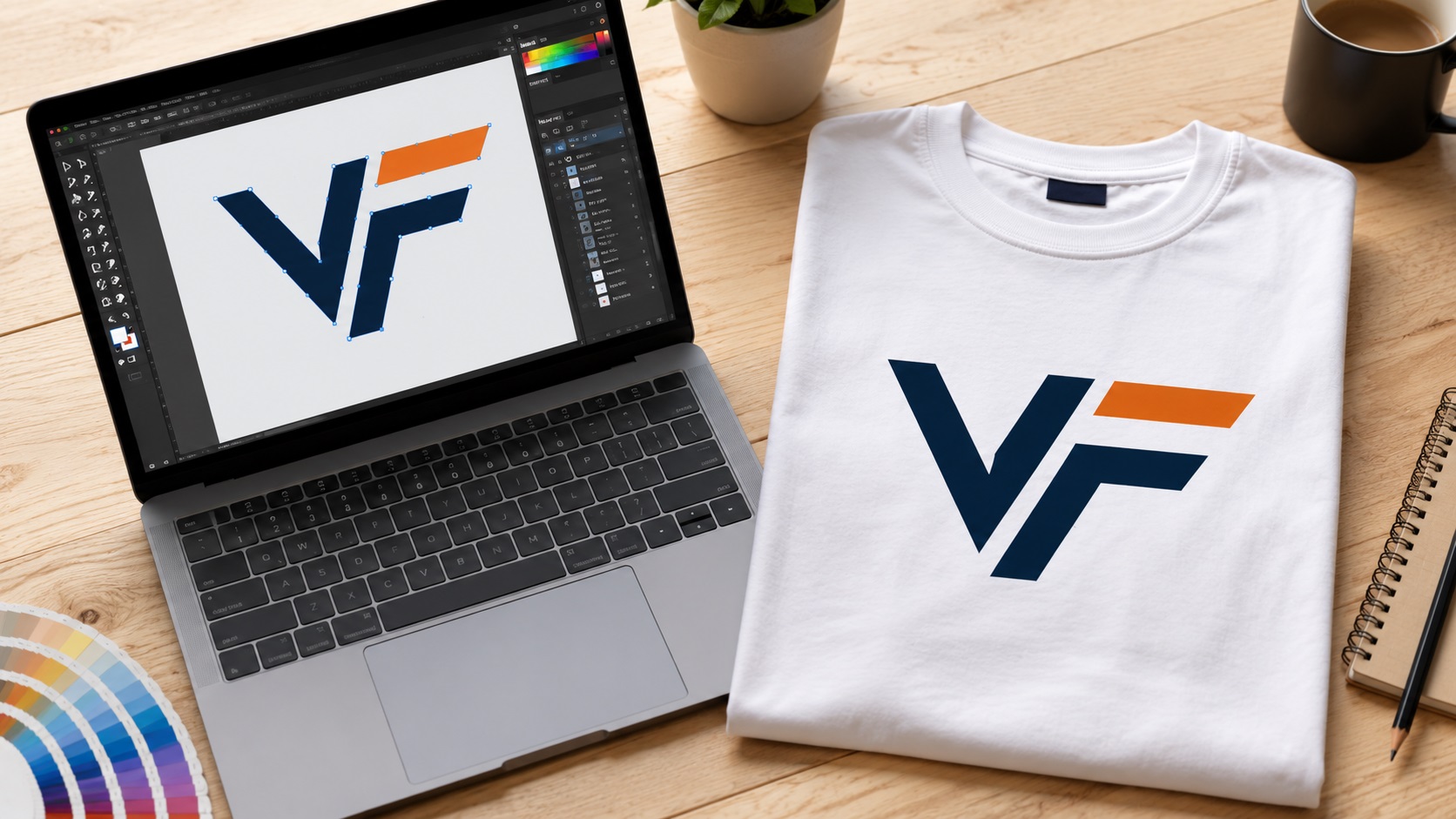
Getting shirts or merchandise printed is exciting. Getting the files wrong is frustrating. Screen printing is one of those processes where the artwork requirements are very specific, and a lot of people only find out about them after their printer comes back with questions or problems.
Quick Answer
A t-shirt printer usually wants clean vector artwork for logos and flat graphics: EPS, AI, PDF, or sometimes SVG. Photos can be raster, but logos, text, and solid-color artwork are easier to print cleanly when they are vector and prepared at the right size.
Relevant VectorFixer service: Vector File for T-Shirt Printing.
This guide covers exactly what you need to know before you send your logo to a screen printer.
Why Screen Printing Is Different From Regular Printing
Most desktop printers and even large-format inkjet printers can handle full-color photos and gradients. Screen printing works differently.
In screen printing, each color in your design is printed through a separate screen. If your logo has five colors, the printer creates five separate screens. Each one lays down a single layer of ink. This process produces bright, durable prints that can last for years.
But because of how it works, screen printing doesn't handle gradients, subtle shadows, or blended colors well. The artwork needs to be clean, flat, and properly separated by color.
What File Format Does Screen Printing Require?
Screen printers need vector files. Specifically, they usually ask for:
- AI (Adobe Illustrator)
- EPS
- PDF (vector-based, not image-based)
- SVG in some cases
JPEG and PNG files are not acceptable for screen printing. Even high-resolution raster files can cause problems because the printer needs to separate the colors, and that's only possible with a clean vector file.
If you only have a JPEG or PNG version of your logo, it needs to be converted to vector before you can submit it for screen printing.
Color Separation: What It Means and Why It Matters
Color separation is the process of splitting a design into individual color layers. Each layer gets its own screen.
For screen printing to work properly, every color in your design needs to be a flat, solid fill. Not a gradient. Not a semi-transparent layer. A clean, opaque color.
Common issues that cause problems at the printer:
- Gradients (color that blends from one shade to another)
- Drop shadows and glows
- Semi-transparent shapes
- Too many colors (each color adds cost)
- Colors that aren't defined clearly in the vector file
If your logo was designed digitally and looks good on screen, that doesn't mean it's ready for screen printing. Screen compatibility needs to be checked specifically.
How Many Colors Should Your Screen Print Design Have?
Every color in your design costs more to print. Most screen printers price their work per color because each color requires its own screen, its own pass, and its own ink mix.
For budget-friendly merch, aim for one to three colors. For a more detailed design, four to six colors is common. Anything beyond that becomes expensive quickly.
If your logo has 12 colors or complex shading, it may need to be simplified before it's suitable for screen printing. A designer can redraw it as a simplified version that still looks great on a shirt.
Pantone Colors and Ink Matching
Screen printers mix ink to match specific colors. The most accurate way to specify colors for printing is to use Pantone (PMS) color codes.
If you tell your printer "use dark blue," you might get a different shade than you expected. If you tell them "use Pantone 2767 C," they can mix the exact ink to match.
When you have your logo vectorized or redrawn for screen printing, ask for Pantone color codes to be assigned in the file. This prevents color surprises and ensures your brand stays consistent across all printed materials.
Artwork Size and Placement
Before you send your file, decide on:
- The size of the print area (for example, a chest print is usually about 10 to 12 inches wide)
- Where it goes on the garment (left chest, full front, back, sleeve)
- Whether you need different versions for different shirt colors
If your logo is white or light-colored, it might need an underbase (a white ink layer printed first) when going on dark shirts. If your logo is dark, it may disappear on a dark garment entirely.
Talk to your printer about the garment color before finalizing your file.
Getting a Clean Vector File for Screen Printing
If your logo is already a vector file with flat colors, clean paths, and no gradients, you're in good shape. Send it to your printer and they should be able to work with it.
If your logo is:
- A JPEG or PNG
- An AI-generated image
- A blurry or low-quality file
- A logo with gradients and shadows that need to be removed
- A file that uses too many colors
...then it needs to be redrawn or prepared specifically for screen printing.
Professional vector tracing services can redraw your logo as a clean, screen-print-ready vector file. This includes removing gradients, simplifying colors, cleaning up paths, and setting up the file in a way that makes your printer's job easy.
Checklist: Is Your Logo Ready for Screen Printing?
Before submitting your file, check these things:
- Is it a vector file (AI, EPS, SVG, or vector PDF)?
- Are all colors flat and solid (no gradients)?
- Are the colors correctly labeled or assigned Pantone codes?
- Is the number of colors as low as possible?
- Is the file sized correctly for the print area?
- Are there no hidden layers, extra shapes, or locked elements?
If you can check all of these, your file is probably ready to go.
Need your logo prepared for t-shirt printing?
If your printer asked for vector artwork and you only have a PNG or JPG, VectorFixer can prepare clean files for apparel production. Use the project submission form to upload the artwork and include any vendor requirements.
Related Guides
Frequently Asked Questions
Can I use Canva to create a screen print design?
Canva is great for quick graphics, but it doesn't export true vector files with proper color separation. For screen printing, you'll want the design converted to a proper vector file before submitting it.
What if my logo has a gradient?
Gradients don't work well in standard screen printing. Your designer will need to either remove the gradient, replace it with a halftone pattern, or find another way to simplify it. Some specialty printers offer simulated process printing that can handle gradients, but it costs more.
How do I know what Pantone color matches my brand color?
If your brand has official Pantone codes, use those. If not, a designer can match your existing color to the closest Pantone using color-matching tools in Illustrator. It's not always exact, but it gets close.
Do I need a different file for different shirt colors?
Not always, but you may need adjusted versions. For example, a dark navy logo on a white shirt versus that same design on a dark shirt might require different ink treatment. Check with your printer.
What resolution should my artwork be?
This question applies to raster files. Vector files don't have resolution -- they scale to any size without quality loss. This is one more reason to use a vector file for screen printing.
Need artwork converted?
VectorFixer can redraw logos, convert PNG files to SVG, and prepare clean production-ready vector files.
Contact Us